Create tenant account and add users
Create account
To create your tenant account in Layer1 Sandbox and obtain access for your admin user:
- Submit Company Information.
Provide the Layer1 Solutions team with the following details:- Company name: This will be used as your tenant name in the system.
- Admin user email address: This user will be granted initial access and responsible for further setup.
- Tenant Creation.
The Layer1 team will create your Sandbox tenant for you.
Once complete, an email will be sent to the provided admin email address from no-reply@layer1.com.noteCheck your spam or junk folder if you don’t see the email in your inbox.
- Activate Admin Account.
The admin user must follow the sign-up link included in the email. The link is valid for 3 days from the time of receipt.
Upon first login, the user will be prompted to:- Set a password
- Set up multi-factor authentication (MFA) using one of the following methods:
- Passkey
- Authenticator code
- Access the Sandbox Portal.
After completing the setup, the admin can access the Layer1 Sandbox via the following link: https://app.sandbox.layer1.com/.
Add users
To add users, do the following:
-
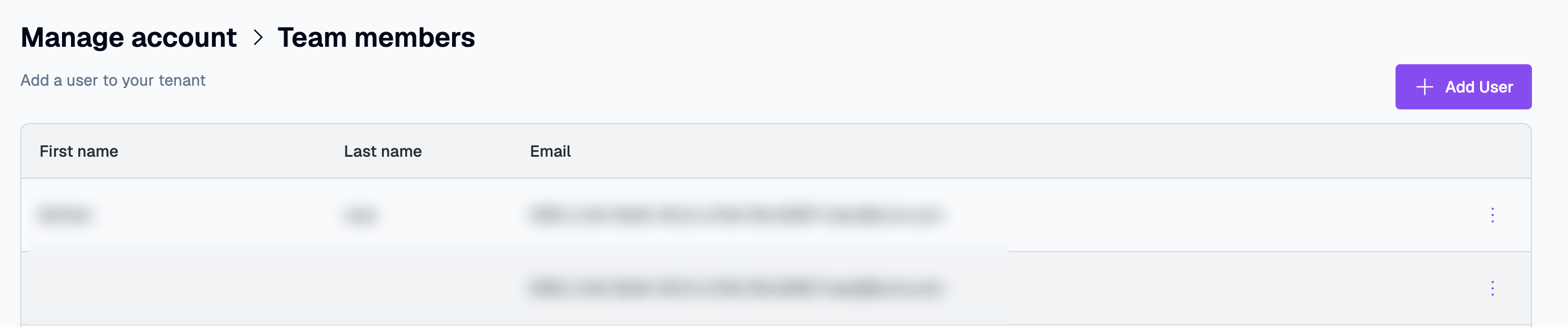
Log in to Sandbox Portal, and in the side menu, go to Manage account > Team members. Here you can see existing users and add new ones.
-
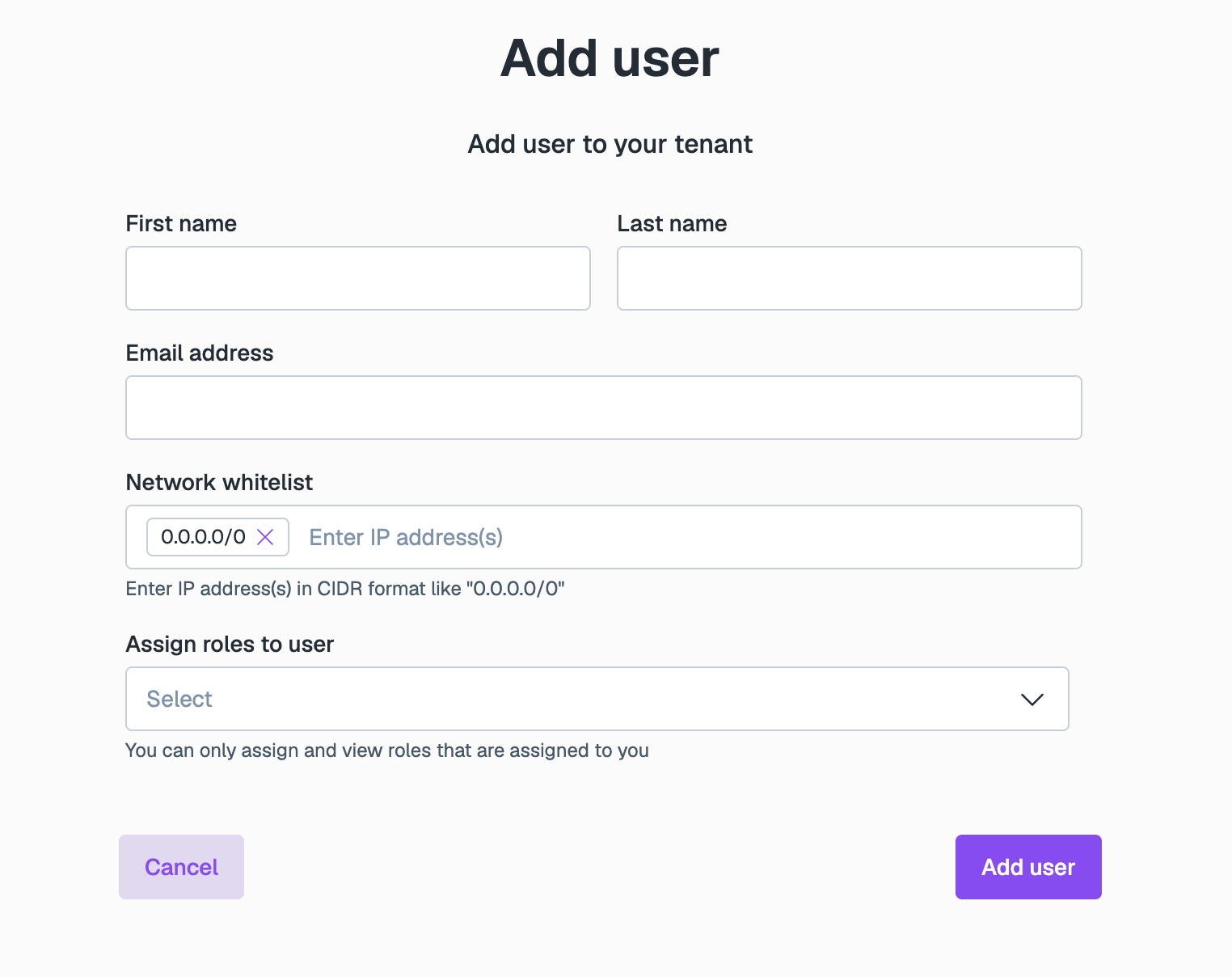
Click Add User and add the following details:
-
First name and Last name
-
Email address. User will receive a sign up link to this address.
-
Network whitelist. Enter specific IP addresses in CIDR format to restrict access for the user. Otherwise, keep the default
0.0.0.0/0. -
Assign roles to user. Select the roles to be assigned from the list. See the details in Role descriptions.
noteYou can only assign roles that you already have.
This security measure prevents users from granting higher privileges than they themselves hold.
-
-
Click Add user.
The new user appears in the Team members list.
To resend an invitation, edit, or delete a user, open the menu (⋮) next to their name in the Team members list and click Resend invite, Edit, or Delete.