Charge merchant fees
With Layer1’s Fee Service, you have all the tools to charge your merchants for the payment processing services you provide. Setting this up correctly is a critical first step before processing any merchant payments.
Key concepts
Fee policies
Fee policies allow you to group and manage different types of fees tailored to your business requirements. Each policy can include a range of fees typically aligned with specific products, for example, paymentIn, paymentOut, and so on.
We recommend setting up the following:
- Default Policy: A fallback policy applied to all merchants unless overridden.
- Merchant Policies: Bespoke fee configurations for individual merchants.
The DEFAULT policy applies automatically without needing to link it to an account.
Linking Accounts to Policies
To apply a specific fee policy to a merchant account, the policy must be explicitly linked to the account. This is only necessary for merchant-specific policies. The DEFAULT policy is applied automatically.
Add fee policies
The fee policies are added via Layer1 Portal. Your user must have the layer1:role:fee:admin role to manage merchant fees.
To add a fee policy, do the following:
-
Log in to Layer1 Portal, and in the menu go to Merchant Payments > Fee policies. This page has two tabs: Policies, where you create policies and add their fees, and Fee types. Linking policies to merchant accounts is a separate menu item, Merchant Payments > Linked policies.
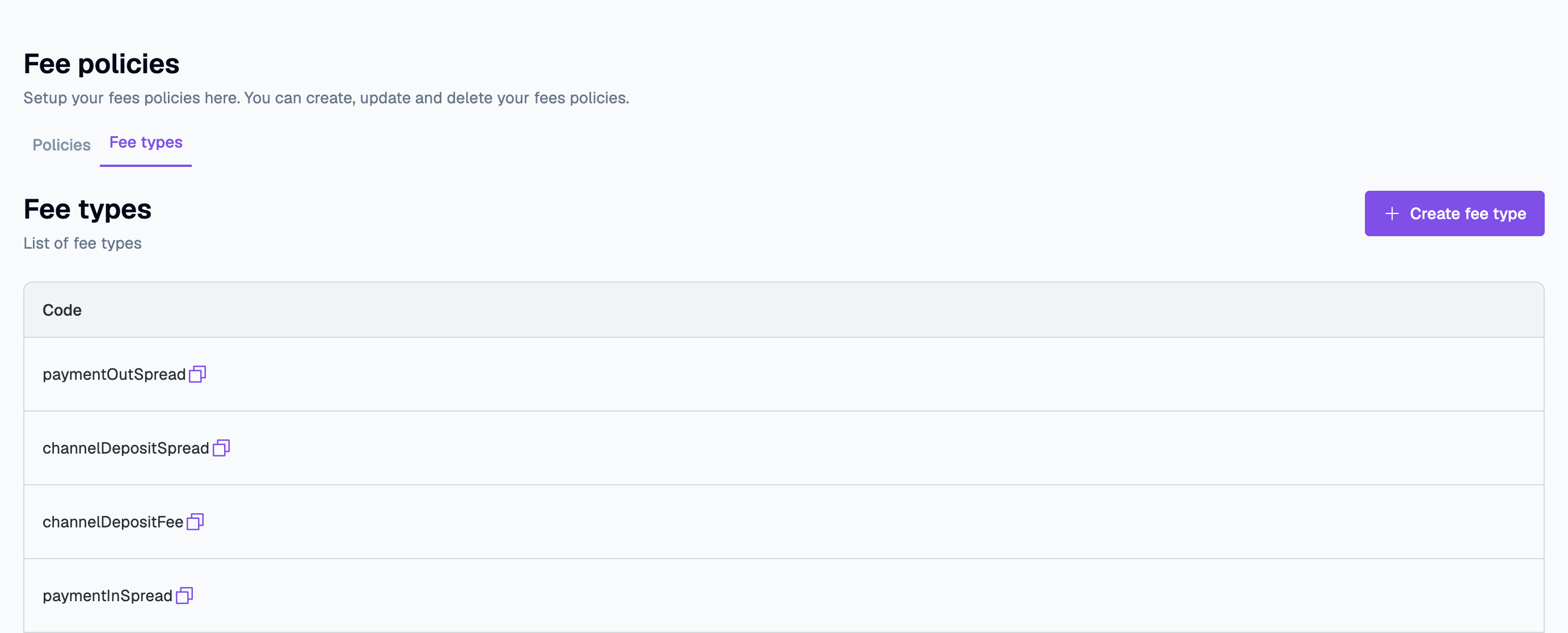
Go to the Fee types tab. Fee types determine the structure of fees across payment flows and are used within your policies. This step is handled once with guidance from our Solutions team. These fees are the key building blocks of your policies, ensuring correct charges based on the flow type.
-
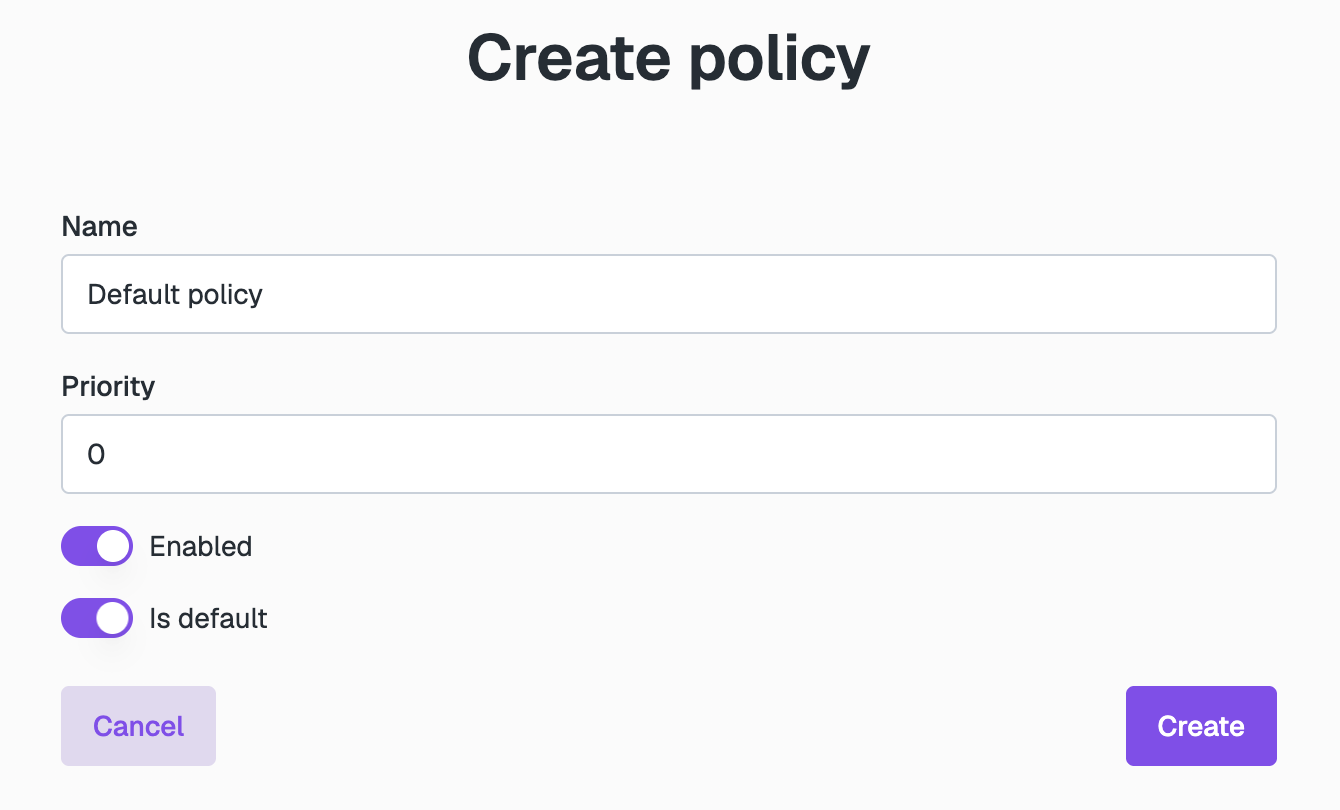
Create a default fee policy:
-
In Fee policies, go to the Policies tab, and click Create policy.
-
Enter a Name for the policy and specify the following parameters:
- Priority:
0 - Enabled: yes
- Is default: yes
- Priority:
-
Click Create.
-
-
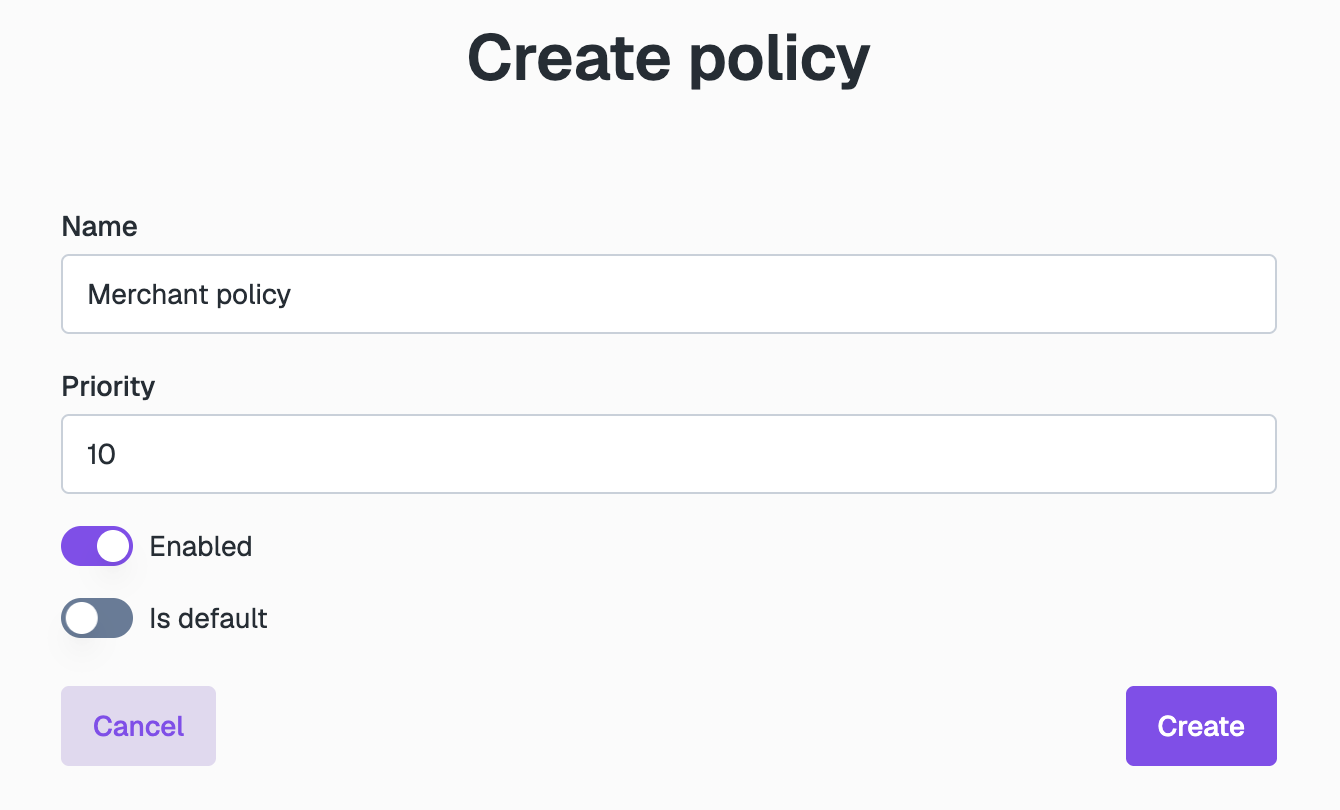
Repeat step 2 to create a Merchant-Specific policy with the following settings:
- Priority:
10to ensure it overrides the default policy - Enabled: yes
- Is default: no
- Priority:
-
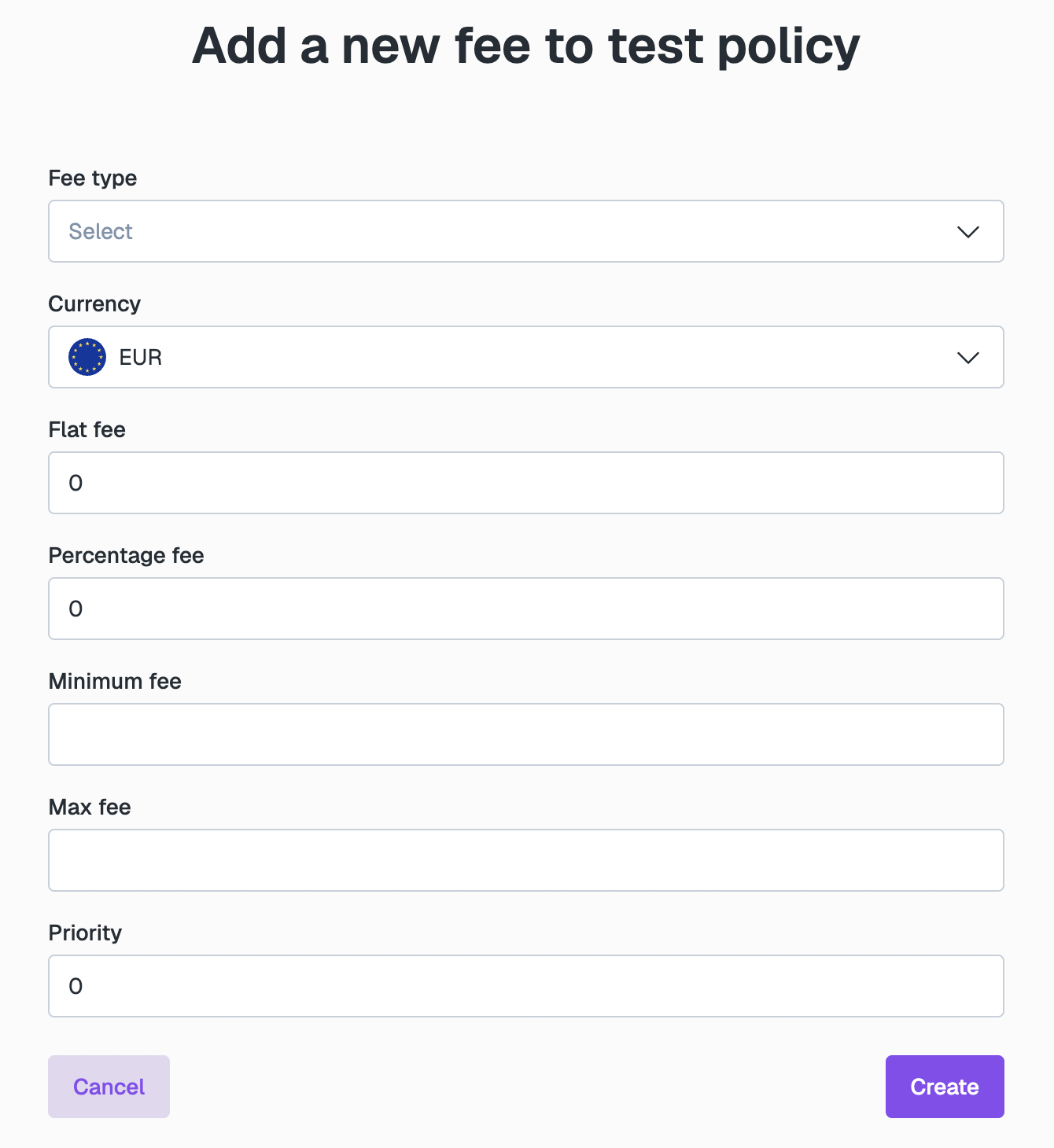
Add fees to policies according to the products in use. On the Policies tab, click the policy, go to the Policy fees tab, and click Add fee. Select the Fee type and Currency, enter the fee amounts, and click Create:
- Fees can be flat or percentage-based. You can also set a Minimum fee and a Max fee.
- Set in EUR or USD. The Merchant Payment Engine handles any necessary currency conversion to the merchant's wallet currency.
-
Link merchant-specific policies to merchant accounts. There are two ways to do this:
-
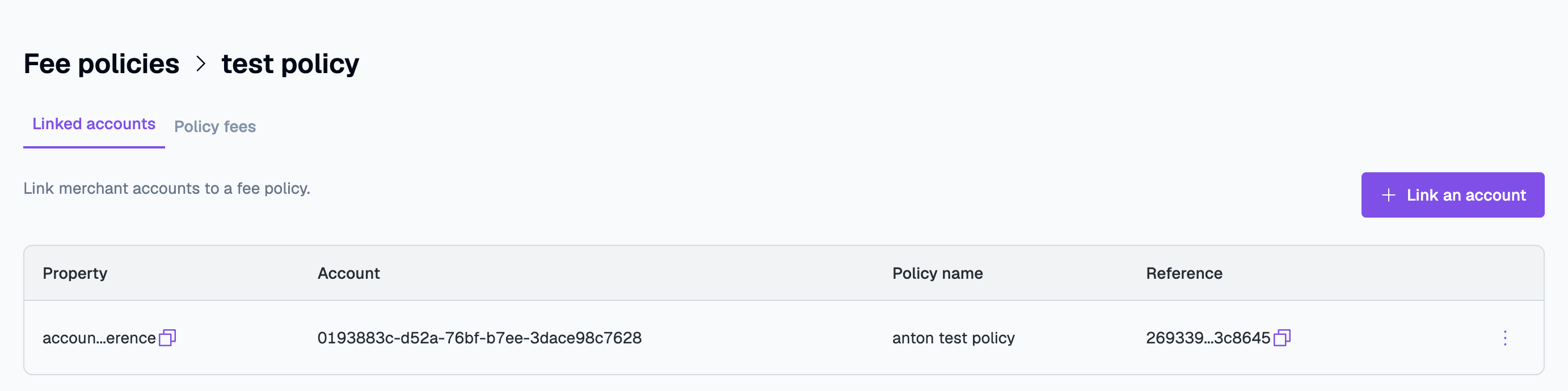
From the policy:
- On the Policies tab, click the policy. The Linked accounts tab opens.
- Click Link an account.
- Choose the account to link from the menu.
-
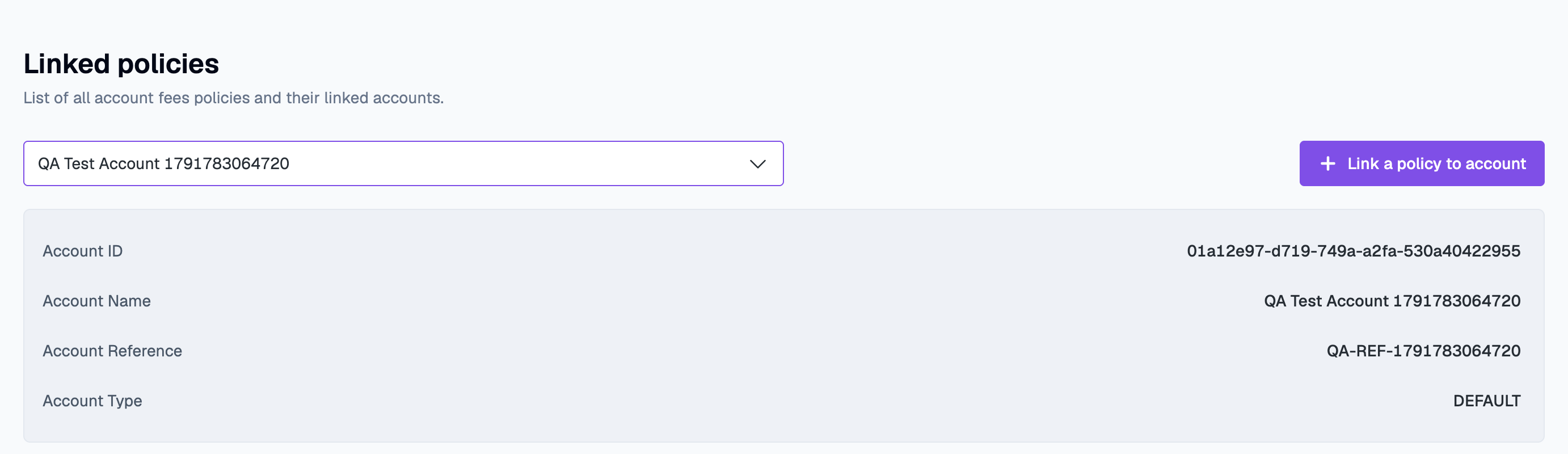
From the account:
- On the main menu, go to Merchant Payments > Linked policies and select the required account.
- Click Link a policy to account.
- Select your policy from the menu.
-
Once you've completed these steps, you're ready to start processing merchant payments with the appropriate fees applied.
Fee configuration directly impacts how merchants are charged. Always consult with the Layer1 Solutions team when setting up or updating fee structures to ensure accuracy and compliance.