BVNK MCP Server
The BVNK MCP (Model Context Protocol) Server allows AI assistants, such as ChatGPT and Claude, to access your BVNK account. The BVNK MCP Server is designed for partners with a BVNK account, whether you work mainly through the API or through the BVNK Portal. If you frequently check balances, review transactions, or look up payment details, the MCP lets you ask a conversational AI assistant instead of calling the API or opening the BVNK Portal.
The MCP server acts as an intermediary between your AI assistant and the BVNK API. When you ask a question, the assistant uses the MCP to access the necessary API endpoints and presents the response in conversational language. You do not need to interact with the API directly or know endpoint names or request formats.
The BVNK MCP Server is currently in private beta with read-only access. It can retrieve data but cannot perform actions on your account, such as making payments, creating wallets, or changing settings.
How to get access
The private beta is available to a limited group of partners selected by BVNK. In this first phase, it is open to direct and embedded partners incorporated in the EEA, the UK, or Switzerland. To request access, follow these steps:
- Contact your Account Manager or reach out through your usual BVNK support channel.
- BVNK will confirm whether your account is eligible and enable MCP access for your users.
- Once enabled, you will receive the BVNK MCP address needed to connect your AI assistant.
Access is granted per user, per account. Each user in your organisation signs in with their own BVNK credentials and can view only the information allowed by their current permissions.
Prerequisites
Before connecting to the BVNK MCP Server, ensure you have the following:
- BVNK user: You need a user on your BVNK account who can sign in with BVNK credentials. The MCP uses the same sign-in, so if your user cannot sign in, the MCP won't work.
- MCP access enabled: Your account must be included in the private beta. Contact your Account Manager to request access.
- BVNK MCP address: Provided by BVNK when your access is enabled. This is the URL you will enter in your AI assistant's settings.
- Supported assistant: Claude and ChatGPT (on a paid plan) both support MCP natively.
- Paid ChatGPT plan: ChatGPT requires a Plus, Pro, Business, Enterprise, or Edu plan. The free plan displays the custom MCP option, but the connection does not complete. This does not apply to Claude.
What you can do
The BVNK MCP provides your AI assistant with a set of read-only tools relevant to finance leads, operations managers, and founders. These tools cover where funds are held, recent inflows and outflows, and items requiring attention.
| Area | Tool | Returns | Use case | Example prompts |
|---|---|---|---|---|
| Wallets | bvnk_list_wallets | Your wallets with balances and currencies | Morning check on where the money is sitting | "How much do I have across my wallets, and which currency is the biggest?" "What's in my USDC wallet right now?" |
bvnk_get_wallet | Single wallet with balance, status, description, type and creation date | Looking up a specific wallet by ID | "What's the balance on my EUR wallet?" "Is my USDC wallet active?" | |
bvnk_get_total_balance | Total portfolio balance, converted to USD | One number for a standup, a board pack, or a cashflow decision | "What's my total balance in US dollars this morning?" "What are our total holdings right now?" | |
bvnk_wallet_overview | Your wallets with totals per currency, plus up to 5 recent payments | A quick snapshot of balances and recent activity in one answer | "Give me a quick overview of my account." "What are my balances, and what's come in recently?" | |
| Transactions | bvnk_list_wallet_transactions | Wallet transaction history | Reconciling activity and identifying one unexplained line | "What came in and out of my EUR wallet yesterday?" "Show me all transactions over 1,000 this week." "There's a 2,300 debit I can't place on my statement. What was it?" |
bvnk_get_transaction | The ledger record behind one payment, looked up by payment UUID | Looking up one specific transaction | "What exchange rate did that payment get?" | |
| Currencies | bvnk_get_exchange_rate | Indicative rate between two currencies | Deciding whether to convert now | "What would I get converting 10,000 USDC to euros right now?" "Is it worth converting today? What's GBP to USDC looking like?" |
| Payments | bvnk_list_payments | Payments with status and date filters: total, and per payment: uuid, status, type, subType, quoteStatus, reference, dateCreated, expiryDate, displayCurrency, walletCurrency, paidCurrency, amount, currency, merchantReference, createdAt. merchantReference and reference are free text and commonly identify the payer. | Chasing failures and confirming a named customer's payment | "Which payments failed this week, and why?" "Did the 4,500 from Acme clear?" |
bvnk_get_payment | Payment detail with legs and quote | Drilling into one payment to see its full breakdown | "Show me the details on payment abc-123." "What exchange rate did that payment get?" | |
| Channels | bvnk_list_channels | Your payment channels with status and currency | Understanding which checkout routes are active | "Which of my payment channels is actually getting used?" "How many channels do I have set up?" |
bvnk_list_channel_payments | Payments received on a channel | Seeing what came in through a specific checkout route | "How much came in through my checkout channels this month?" "Show me all payments on channel X." | |
| Payouts | bvnk_list_crypto_mass_payouts | Bulk payout batches with status | Confirming a supplier run went out | "Did last night's supplier batch go through, and did anything fail?" "Show me all payout batches from this week." |
bvnk_get_mass_payout | Single batch with item-level status | Finding what failed inside a batch | "Which items in that batch bounced, and how much is affected?" "What's the status of each item in batch 42?" |
These examples are starting points, not a fixed set of commands. You can interact with your assistant in your own words and follow up on responses without restarting the conversation. The assistant determines which BVNK capability to use based on your input, so you do not need to know tool names.
The capabilities available to you depend on your BVNK user permissions. Two users in the same organisation may see different data. Your assistant displays a list of BVNK capabilities that accurately reflects your account access.
Data and permissions
- You sign in with your own BVNK credentials. BVNK never asks you for them outside of the standard sign-in page, and the assistant never sees your password.
- You see exactly what your existing BVNK permissions allow. The MCP grants nothing extra. A colleague who cannot see something in BVNK Portal will not see it through their assistant either.
- Access is limited to the accounts explicitly enabled for the beta.
- If you are an embedded partner, payments and transactions also include the activity of your own customers. Your customers don't sign in to the MCP themselves. Only users on your BVNK account can connect.
- You can ask BVNK to switch your access off at any time.
When you ask a question, the answer passes through your AI assistant provider's systems to be shown to you. Your figures and transaction details go through their infrastructure. If this is not acceptable for your account, notify BVNK before connecting.
BVNK does not build the assistant software. What you type into it, and what it shows you, is governed by that provider's terms and BVNK's. Treat the account information it displays with the same care you would any BVNK data, and check your provider's terms on whether conversations are retained or used for training.
Connect your AI assistant
Connecting takes only a few minutes and is required once per assistant. Enter the BVNK MCP address, then sign in with your BVNK credentials when prompted.
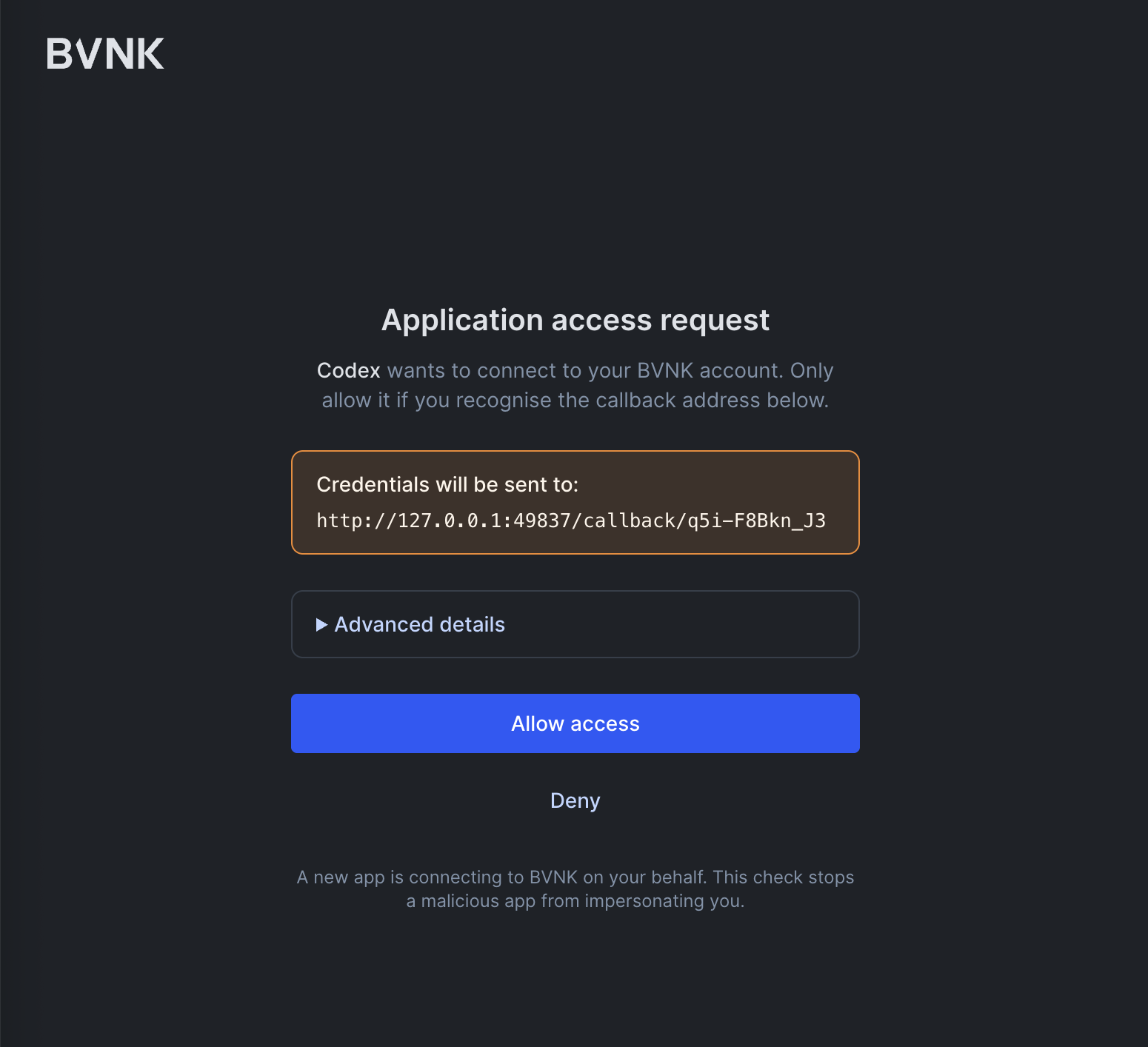
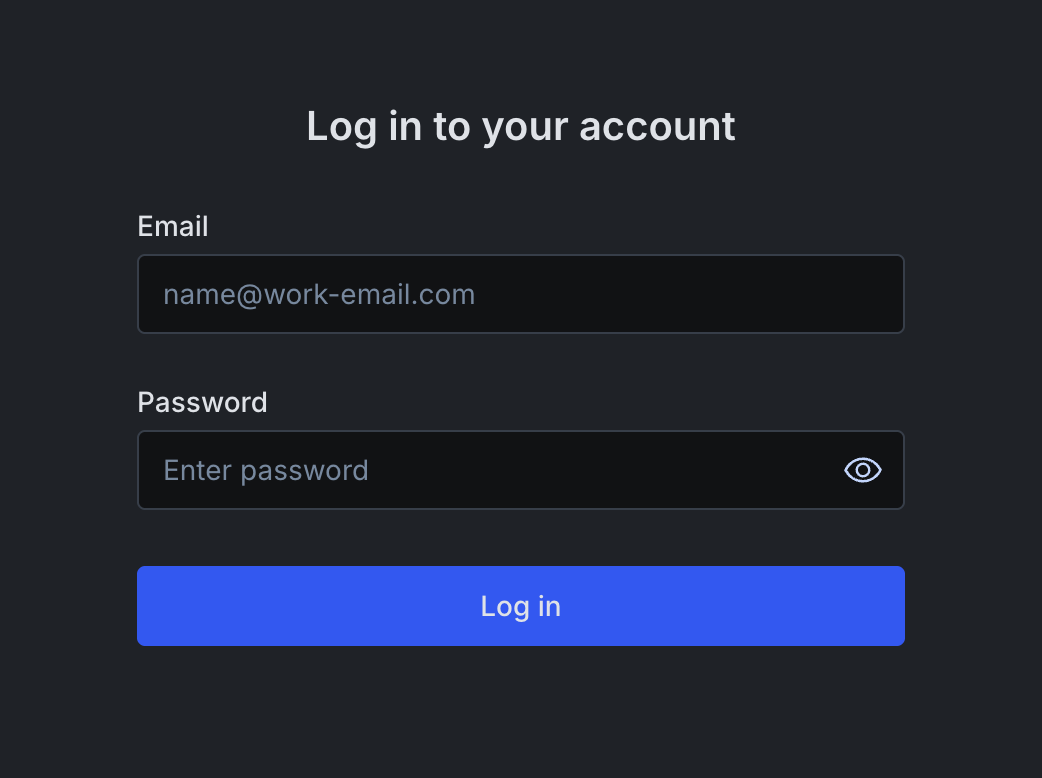
You will never type your BVNK password into the assistant. The assistant opens a BVNK sign-in page in your browser. You sign in there, on the BVNK page, and approve the connection. Your password stays with BVNK.
- Claude
- ChatGPT
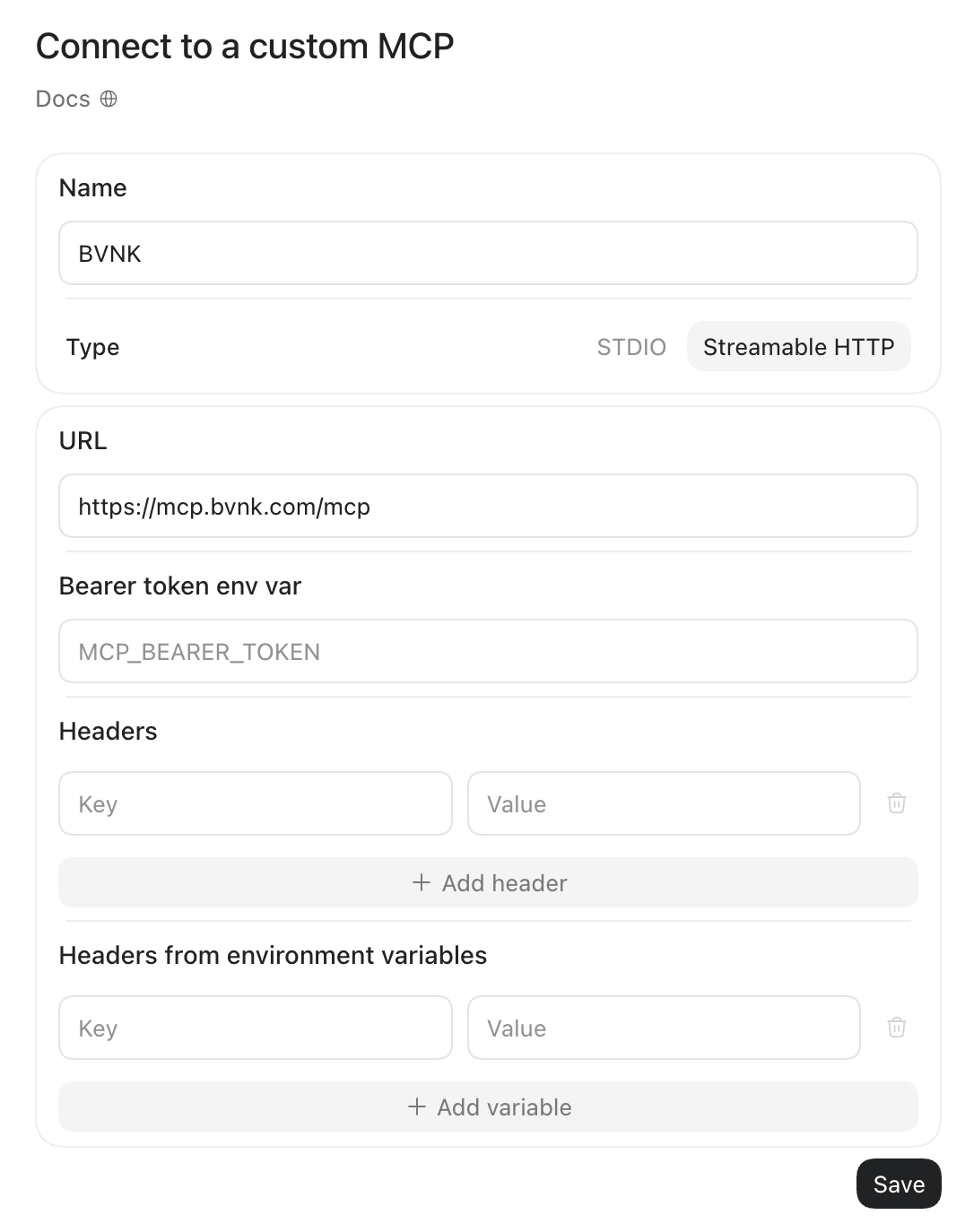
- Other assistants
The same steps work in Claude on the web, in the Claude desktop app on macOS and Windows, and in the mobile apps. Set up the connection once, and it follows your Claude account across all platforms.
-
Copy the BVNK MCP address provided to you.
-
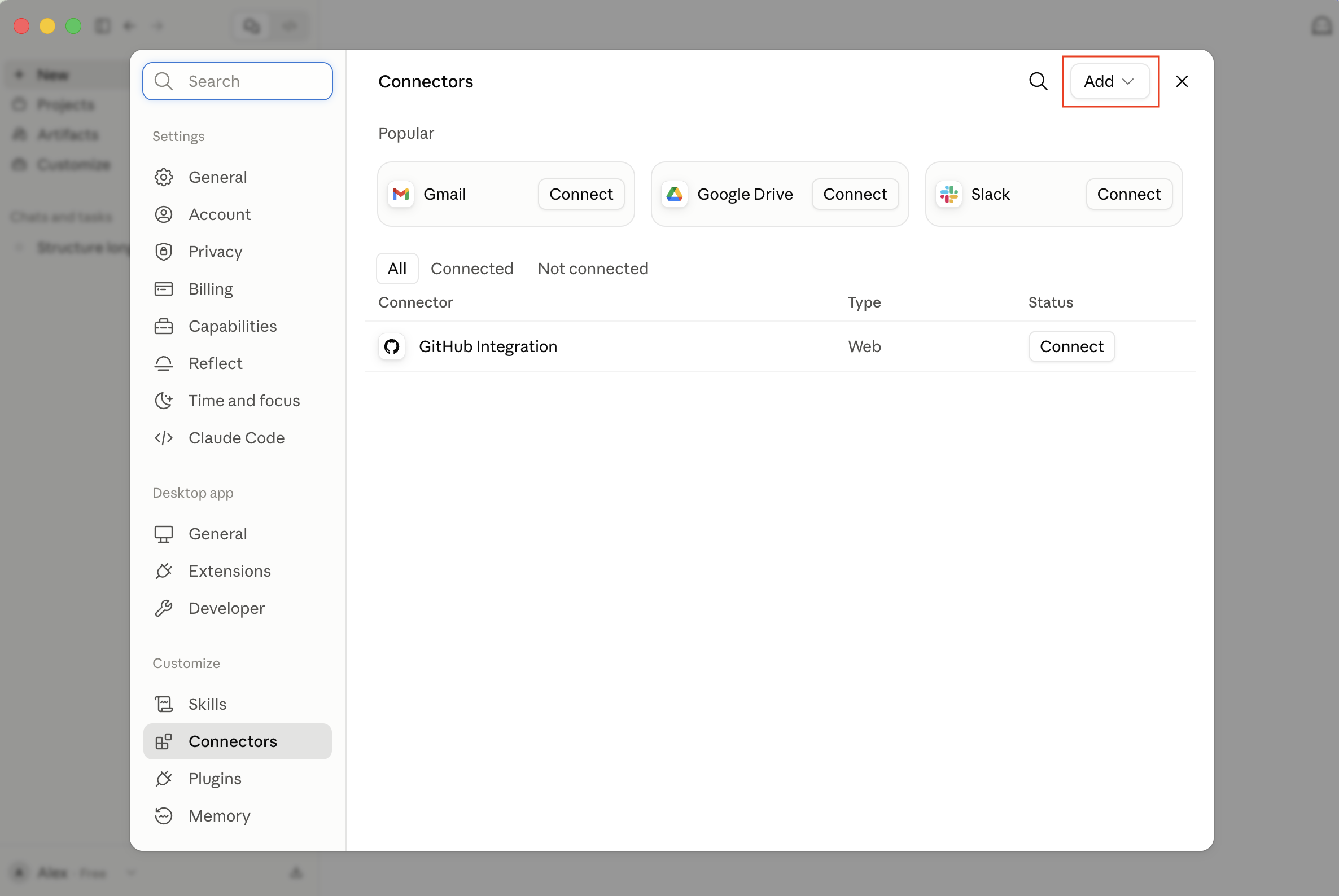
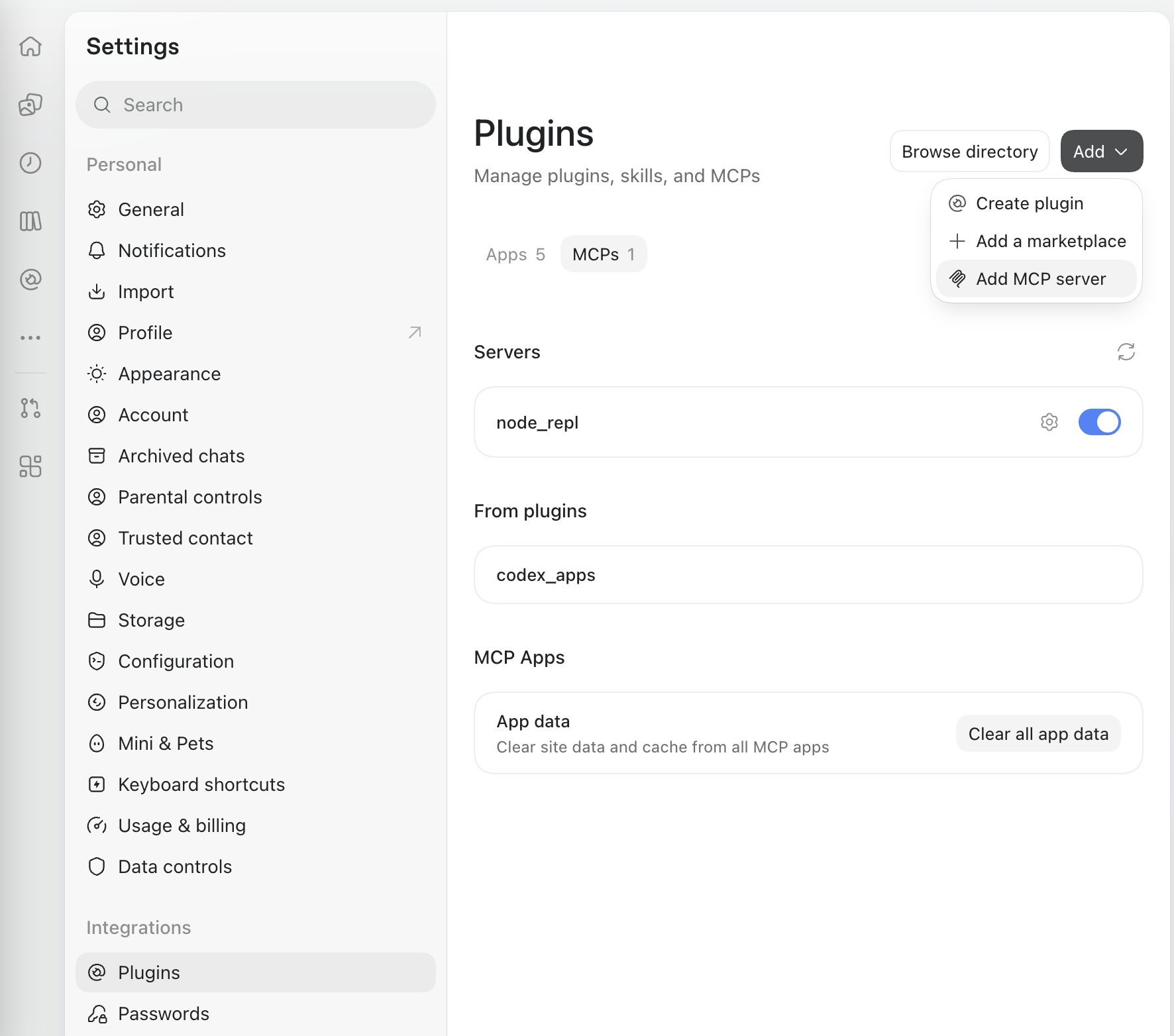
In Claude Desktop, go to Settings > Connectors, click Add and choose to add a custom connector.
-
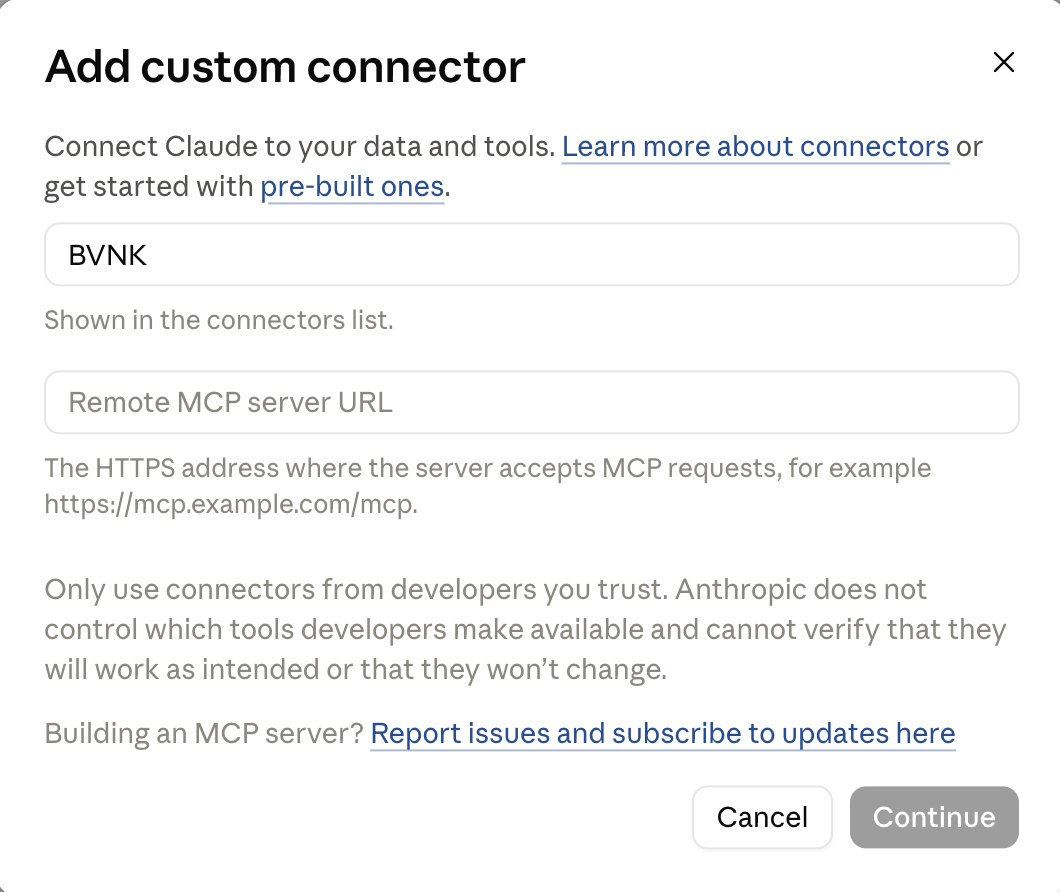
Set the name to BVNK and paste the address into the Remote MCP server URL field. Click Continue.
-
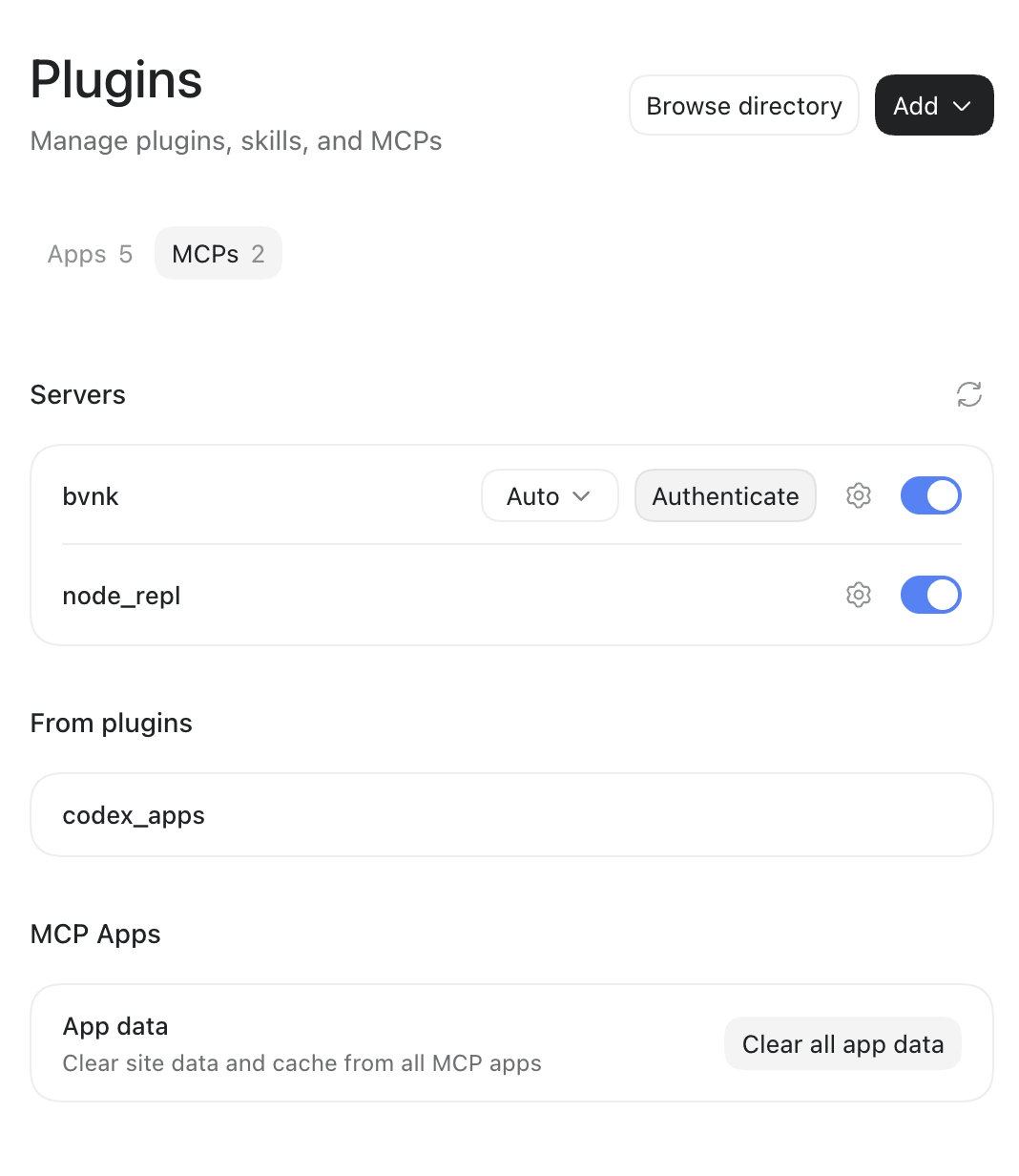
Click Connect next to the new BVNK connector and sign in to link your account.
If you use the desktop app and prefer to edit a configuration file manually, you may do so. However, the Connectors screen provides the same functionality and is easier to use.
Common flow
Once connected, you can use the BVNK MCP conversationally. Open a new chat in your assistant and start asking questions about your account.
Typical workflow:
- Open a new chat in Claude or ChatGPT.
- Ask a question in plain language, for example: "What is the balance across all my wallets?"
- The assistant calls the BVNK MCP, which reads the data from your account via the API.
- The assistant presents the answer in the chat.
- Ask follow-up questions in the same chat to drill into details.
You do not need to start a new chat for each question. The assistant maintains context within a conversation, so you can start with broad questions and then request more specific details.
Example conversation:
You: How much do I have across my wallets?
Assistant: You have 3 wallets with a combined balance of 45,230.00 EUR equivalent. Your EUR wallet holds 32,100.00, your USDC wallet holds 12,050.00 USDC, and your BTC wallet holds 0.015 BTC.
You: Show me the transactions on the EUR wallet from this week.
Assistant: There were 7 transactions on your EUR wallet this week...
Troubleshooting
Most issues encountered during the beta fall into the categories below. Try the suggested solutions first, and contact support if the issue persists.
| What you see | What to try |
|---|---|
| Your assistant shows no BVNK capabilities at all | Check that the connection is still listed in your assistant's settings and shows as connected. If it is there but shows as disconnected, sign in again. |
| You see fewer capabilities than expected | Compare the list against what this beta covers (see the capabilities table above). You only see the areas your BVNK access allows so a colleague may see more. If something on the list is missing for you but you can see it in the BVNK Portal, contact Support. |
| One area works, and another returns an error | Check your permissions on the BVNK portal or contact Support and provide the area name and an example question that fails. |
| It stopped working after you signed out | Sign in again or set the connection up once more. Signing out does not automatically reconnect. |
| The connection previously worked and now fails | Check whether BVNK has sent you a new MCP address, and set the connection up again with it. If not, contact support. During the beta, the address may change. |
| The assistant shows figures for the wrong account | Close your other chats, then sign in again in a single chat. One connection holds one account at a time. If you need two accounts regularly, add a separate BVNK MCP connection for each. |
| Sign-in fails or loops back to the sign-in page | Confirm you can log in to BVNK Portal with the same details. If BVNK Portal works and the MCP does not, contact support. |
| ChatGPT: the connection was saved but never asks you to sign in | Open the plugin settings and check Authentication is set to OAuth rather than No Auth. |
| ChatGPT offers the custom MCP option but Save does nothing | Check your subscription plan. The Free one displays the option and cannot connect. Plus, Pro, Business, Enterprise and Edu can. |
| A figure looks wrong | Check the same figure in the BVNK Portal and treat that as correct. Then contact support with what you asked and what the assistant answered. |
| The assistant says it cannot do something you expected | Check it against the list of what is not in the beta above. If possible, contact us. |
Known behaviours
The following behaviours are expected during the beta:
Only one BVNK account per connection: If you have two chats open and sign in to a second BVNK account in one, the other chat will also switch to that account. This happens because the assistant software stores your sign-in. To avoid this, add a separate BVNK MCP connection for each account.
Manual reconnection after sign-out: Signing out does not automatically reconnect you. The assistant may appear unresponsive afterwards. Sign in again or re-establish the connection.
Setup may need repeating: During the beta, the MCP address or behavior may change. A connection that works currently may need to be set up again. BVNK will notify you in advance when possible.
Read-only access will not change without notice: Individual areas may change as BVNK finalizes the system, but the beta will not gain the ability to act on your account without prior notification from BVNK.
FAQ
Configuration and use
Can the assistant move my money or change my account?
No. The assistant can only read data. Payments, transfers, and withdrawals are not included in this beta. BVNK will notify you before adding any ability to act on your account.
Does the assistant company see my BVNK data?
Your account information passes through the assistant to display to you, similar to how it passes through your browser when you access the BVNK Portal. The assistant provider's terms govern how your data is handled, including whether conversations are retained. BVNK sends only the information you request, and it never shares your BVNK password with the assistant provider.
In this initial phase, the assistant can access only your financial data: wallets, balances, transactions, payments, channels, exchange rates, and mass payouts. Transaction report exports and records related to your contacts, beneficiary details (name, IBAN, bank account), team members, API keys, webhooks, and account settings are not included.
Do I need a developer to set this up?
No. Setup involves a few assistant settings and a standard BVNK sign-in. If your assistant requests anything beyond a name and address, stop immediately and notify BVNK.
Can my colleagues use it too?
Yes. Each user signs in with their own BVNK credentials and can view only the information allowed by their permissions. If a user cannot see a wallet in BVNK Portal, they will not see it through the assistant. This is why two co-workers may have different BVNK capabilities in their assistants.
Can I use this on more than one assistant at the same time?
Yes. You may connect BVNK MCP in both Claude and ChatGPT if you use both assistants. However, avoid connecting two different BVNK accounts at the same time, as described above.
I have more than one BVNK account. How should I set that up?
Only beta-enabled accounts can connect. If your user is linked to both beta and non-beta accounts, you can access the MCP only through the beta-enabled one.
Add the BVNK MCP once for each enabled account, name each connection after the account it belongs to, and sign in to each one with that account's details. Then ask your questions through the connection for the account you mean. Signing in and out of a single connection is what causes the silent account switch described above, so separate connections avoid it. Ask us for the address to use for each account before you start.
Does this change how I log in to BVNK Portal?
No. BVNK Portal works exactly as it does today, and this beta doesn't change that.
Does it cost anything?
BVNK doesn't charge for connecting your assistant or for usage. Your assistant provider may have its own fees, which remain between you and the provider.
How do I turn it off?
Remove the connection in your assistant's settings to disable access immediately. You can also ask the assistant to log you out. That ends your BVNK session straight away, in every chat that uses the connection, not only the one you are in. You may also request BVNK to deactivate your access, which will affect only your account. In that case, access then ends at the next BVNK sign-in expiry.
How current is the information it shows me?
The assistant retrieves your account information in real time, so it is as current as the BVNK Portal. If there is ever a discrepancy, rely on the BVNK Portal and notify us.
The assistant told me something about my account that looks wrong. What do I do?
Verify the figure in the BVNK Portal and consider it authoritative. Then inform us of what you asked and the assistant's response. Discrepancy reports are valuable for improvement.
Sign-in and access
I signed in, but BVNK says I don't have permission to access this. Why?
Your BVNK account is not enabled for the beta. Your BVNK credentials are valid, so you can sign in, but BVNK checks beta access before granting your assistant access and stops there. Your assistant receives no access to your data.
This doesn't affect your BVNK Portal sign-in, which continues to work as usual. To request beta access, contact your Account Manager.
If you don't have a BVNK account, the sign-in page returns a general access error instead, the same one you see when you open any BVNK link you are not authorised to view.
BVNK shows an error when I sign in or choose my account. What does that mean?
BVNK can't connect the account you chose with your user. BVNK shows the same error screen for each of the following causes, so check them in order:
- No role on the account: Your user is linked to the account but has no role assigned. Ask an admin on your BVNK account to check your role in the BVNK Portal.
- Recently assigned role: If your role was assigned or changed recently, it may not be active yet. Wait a short while, then sign in again.
- No linked account: Your user isn't linked to any BVNK account. Ask an admin on your BVNK account to invite you.
- Invalid sign-in: If none of the above applies, disconnect BVNK in your assistant's settings, connect it again, and sign in.
If the error persists, contact support with the approximate time it happened and the account you chose.
I chose the wrong account during sign-in. How do I switch?
The assistant uses the account you choose during sign-in for every question on that connection. To switch, disconnect BVNK in your assistant's settings, reconnect it, and choose the correct account when prompted.
After you reconnect, check that the wallets the assistant lists match the account you intended. If you work with more than one account regularly, add a separate connection for each, as described in I have more than one BVNK account above.
One area always returns an error, while others work. Why?
Each area relies on a specific BVNK permission. For example, if your BVNK user can view payments but not wallets, payment questions work, and every wallet question fails. The assistant may not tell you the cause and might only say it couldn't answer, which can make it seem like it misunderstood your question.
To check, open the BVNK Portal and see whether you can view the same information there:
- You can't view it in BVNK Portal: Ask an admin on your BVNK account to update your role.
- You can view it in BVNK Portal: Contact support with the area name and an example question that fails.
The assistant says I've made too many requests. What should I do?
BVNK limits how many requests it accepts in a short period, and a single question can involve several requests. Wait a short while, then ask again.
This isn't a sign-in problem, so you don't need to sign in again or reconnect. If you reach the limit regularly during normal use, let support know.
What happens if my access is removed while I'm using the assistant?
BVNK can switch off your beta access, for example at your request, when your account is suspended, or when the beta ends for your account. Access does not end immediately. It ends at the next BVNK sign-in expiry. After that, questions that need BVNK data fail, including in the middle of a conversation, and signing in again shows a screen saying you don't have permission to access this.
To end access straight away, remove the connection in your assistant's settings.
Answers the assistant gave you before access ended remain in your chat history, which your assistant provider's terms govern.
The assistant asks me to sign in to BVNK again in the middle of a chat. Is that expected?
Yes. Your BVNK sign-in lasts for a limited time, and when it expires, your assistant asks you to sign in again. Follow the prompt, sign in on the BVNK page, and ask your question again. You don't need to remove and re-add the connection.
If the assistant stops returning BVNK data without asking you to sign in, disconnect BVNK in your assistant's settings, then reconnect it.
The sign-in window closed by itself, stayed blank, or didn't show an error. What should I do?
The BVNK sign-in page opens in a window that your assistant controls, not BVNK. If something goes wrong during sign-in, that window may close on its own, stay blank, or hide the BVNK error page, so you may not see why sign-in failed.
To find the cause, follow these steps:
- Sign in to the BVNK Portal in your browser with the same details. If that fails, resolve the BVNK Portal sign-in first.
- In your assistant's settings, connect BVNK again.
- If the window still closes or stays blank, contact support with the name of your assistant, whether you use it on the web, desktop app, or mobile app, and what you saw.
I signed in to a different BVNK account in one chat, and my other chat switched too. Why?
Your assistant stores one BVNK sign-in per connection and shares it across all your chats. When you sign in to a different account in one chat, every chat using that connection switches to that account, and the assistant doesn't tell you. Data from the two accounts isn't combined: each answer comes from the account that was signed in when you asked.
BVNK can't change this, as the assistant software controls the behaviour. To work with two accounts, add a separate BVNK connection for each, as described in I have more than one BVNK account above.