Reconcile transactions
Reconciliation allows you to verify that your internal transaction records match BVNK's transaction data. By comparing your system's records with BVNK's transaction reports, you can identify discrepancies, ensure accounting accuracy, and maintain compliance with financial reporting requirements.
You can generate reconciliation reports manually on demand or automatically on a schedule. Reports are available in CSV, PDF, or JSON format and can be delivered via email or webhook. Use these reports to:
- Verify transaction amounts and balances.
- Identify missing or duplicate transactions.
- Reconcile fees and currency conversions.
- Prepare accounting records and financial statements.
Prerequisites
To use the Reconciliation API, you need to have:
- BVNK account in the sandbox or production environment
- API credentials: Hawk Auth ID and Secret Key
Retrieve transaction history
Create reconciliation reports manually using the API or the Portal.
- API
- Portal
To generate transaction and balance reports via API, use the following endpoints:
POST /ledger/v1/reports: Recommended for reconciliation. Generates comprehensive transaction reports for specific wallets or all wallets. Supports CSV, PDF, and JSON formats, as well as webhook or email delivery.GET /ledger/v1/transactions: Use for real-time transaction queries. Returns paginated results suitable for API integration, not bulk reconciliation.GET /api/wallet/balances: Use to retrieve balance snapshots for a specific date. Useful for balance reconciliation.GET /api/v1/pay/summary: Use for crypto payment history only. Limited to crypto transactions.GET /api/v2/channel: Use for channel payment history only. Limited to channel transactions.
See the endpoints' documentation for more information.
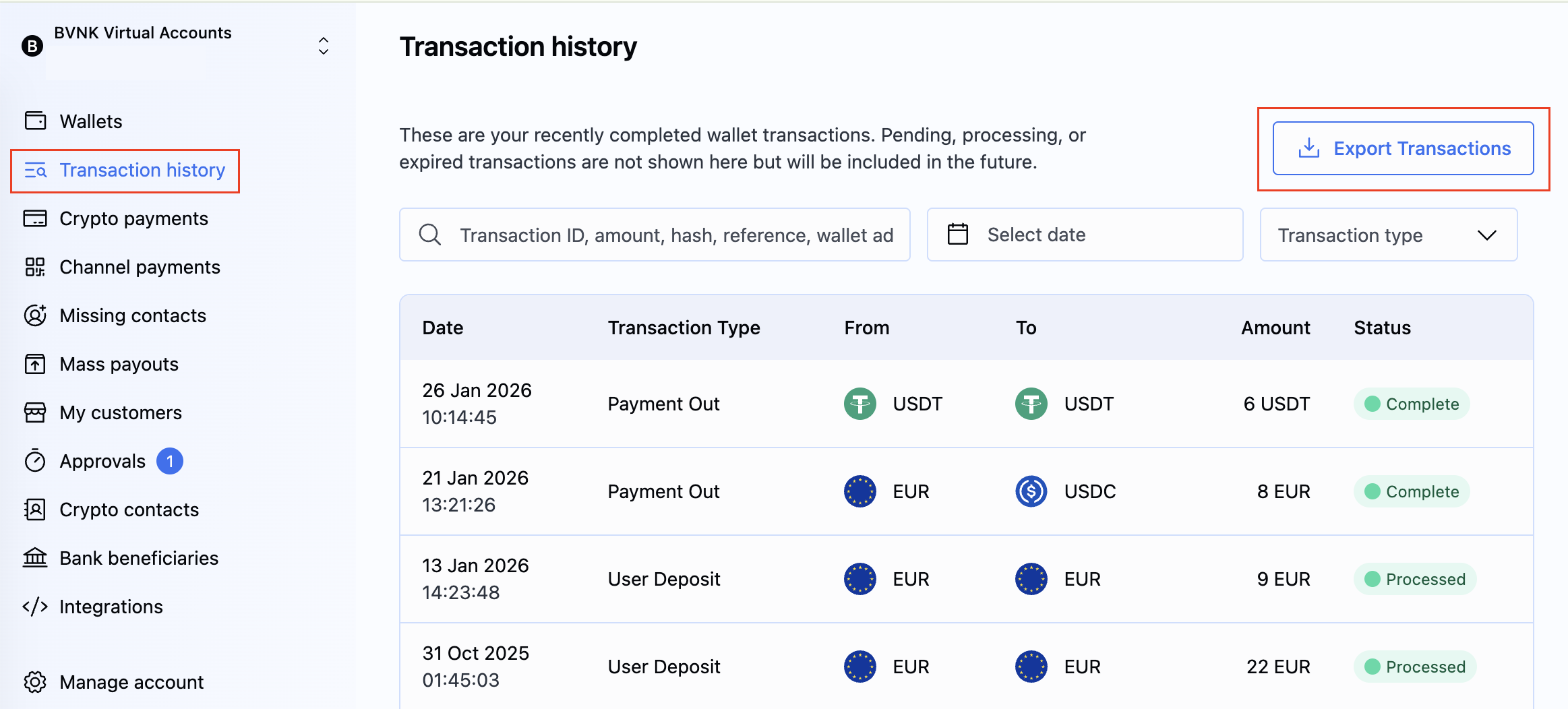
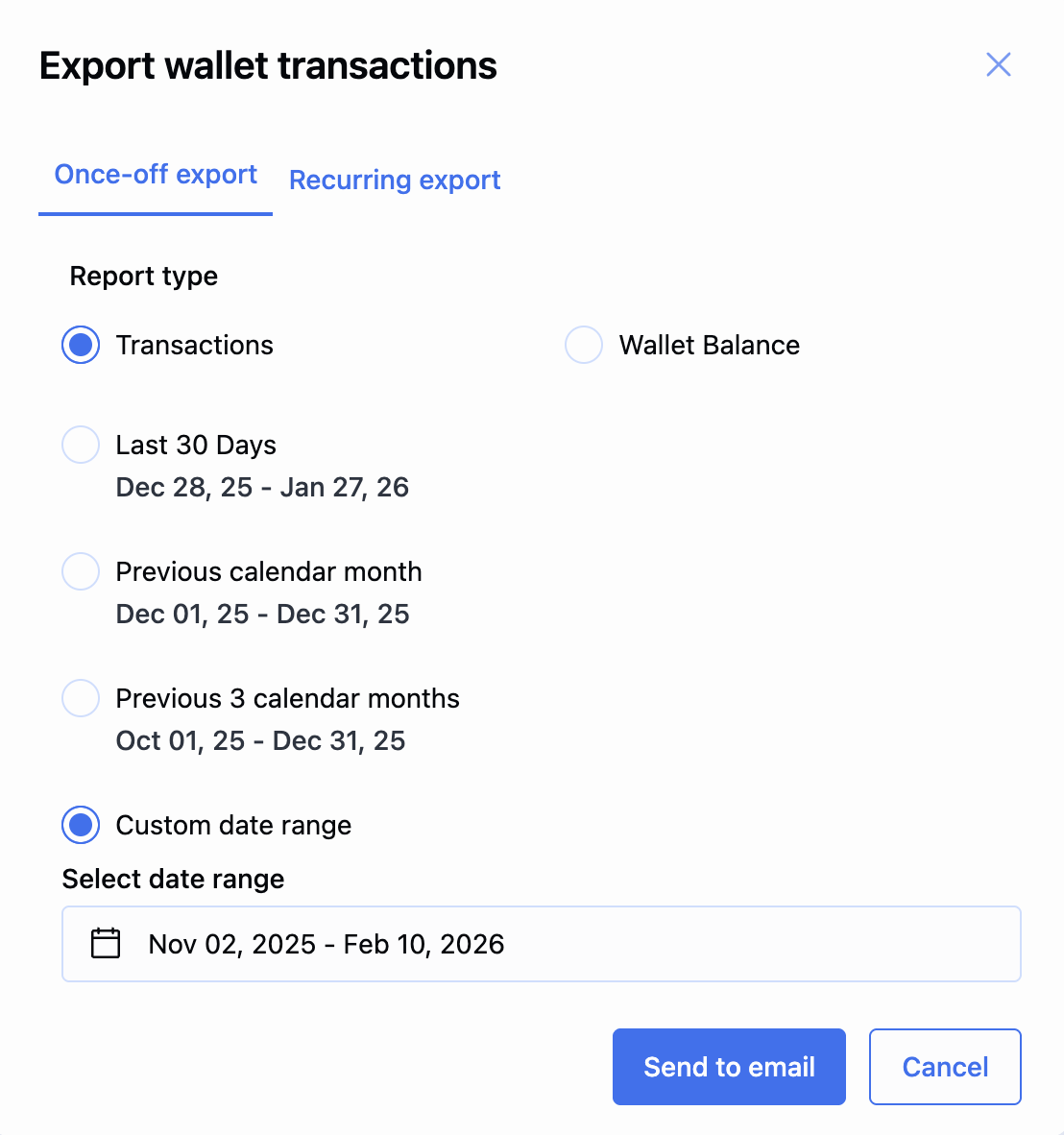
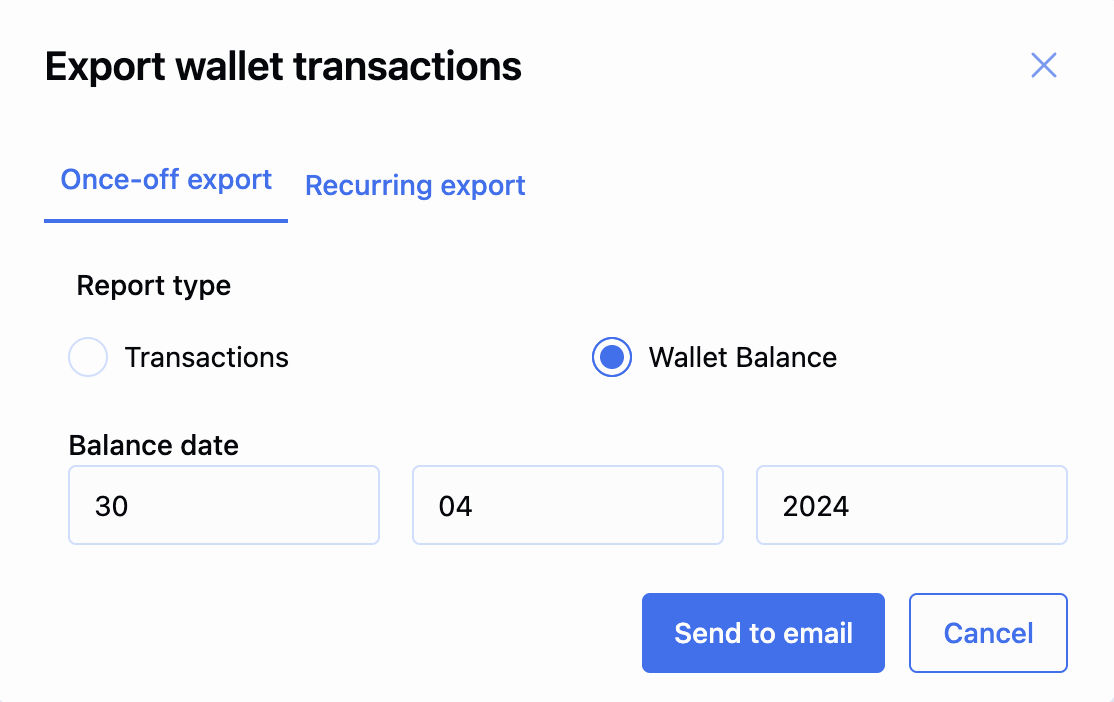
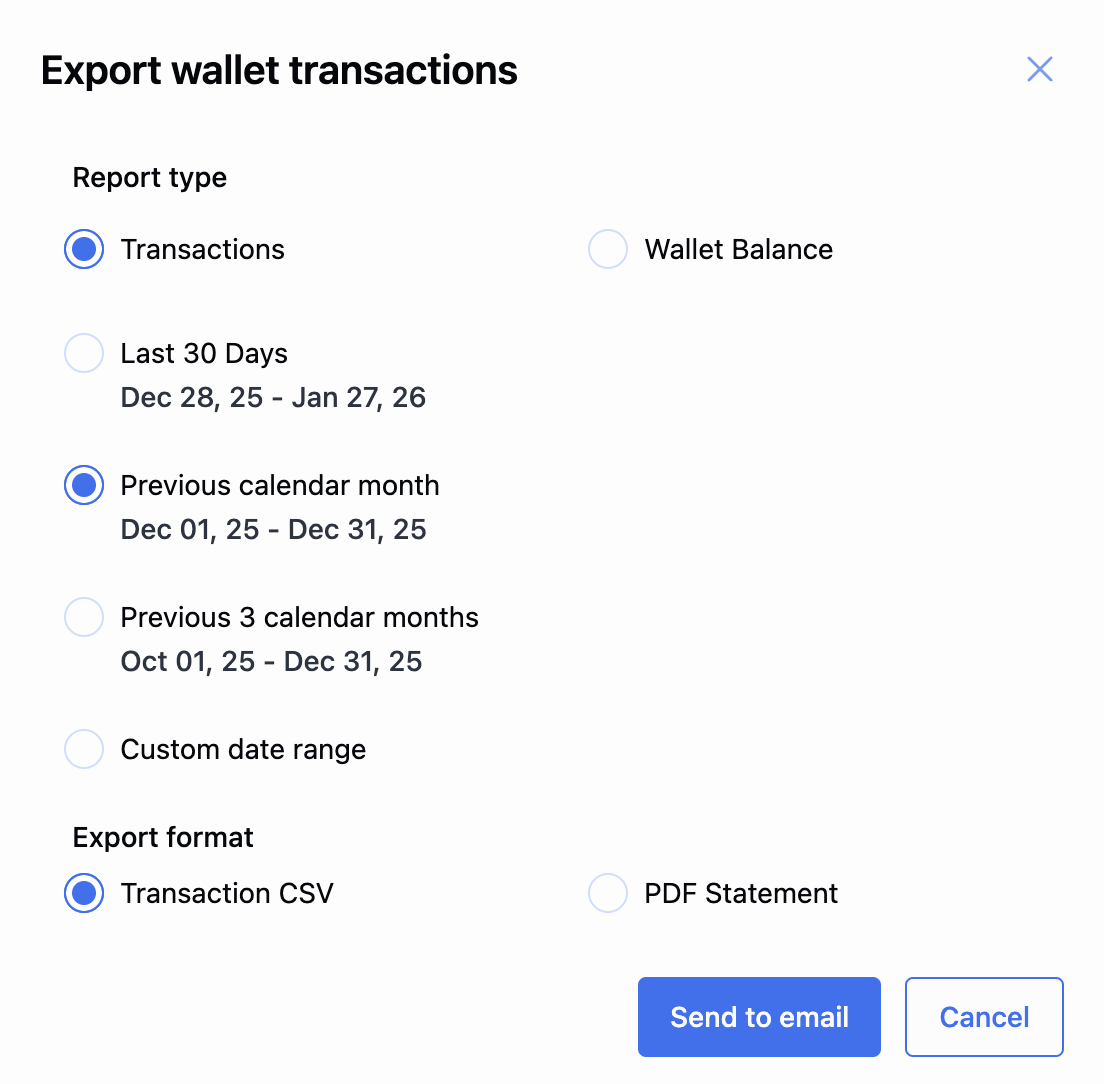
Schedule a recurring report
Schedule recurring reports for automated email delivery on a regular basis.
You can create only one recurring export per account.
Scheduled reports are generated for the previous time period:
- Daily: Generated for the previous day. For example, a report scheduled for January 2nd contains data from January 1st.
- Weekly: Generated for the previous week. For example, a report scheduled for Wednesday contains data from the previous Tuesday to the current Wednesday.
- Monthly: Generated for the previous month. For example, a report scheduled for February 1st contains data from January.
Reports have a data lag due to processing time:
- Production environment: 1-hour lag. A report generated at 9:00 AM includes transactions up to 8:00 AM.
- Sandbox environment: 8-hour lag. A report generated at 9:00 AM includes transactions up to 1:00 AM.
- API
- Portal
If you try to create a schedule when one already exists, you receive a 409 Conflict error. Delete or update the existing export schedule first.
To schedule a recurring report via API, use the following endpoints:
POST /ledger/v1/report-schedules: Schedules a recurring report for a specific wallet. Use theidof the report from the response to update or delete the schedule.GET /ledger/v1/report-schedules/{scheduleId}: Retrieves a list of recurring report schedules created by the user.
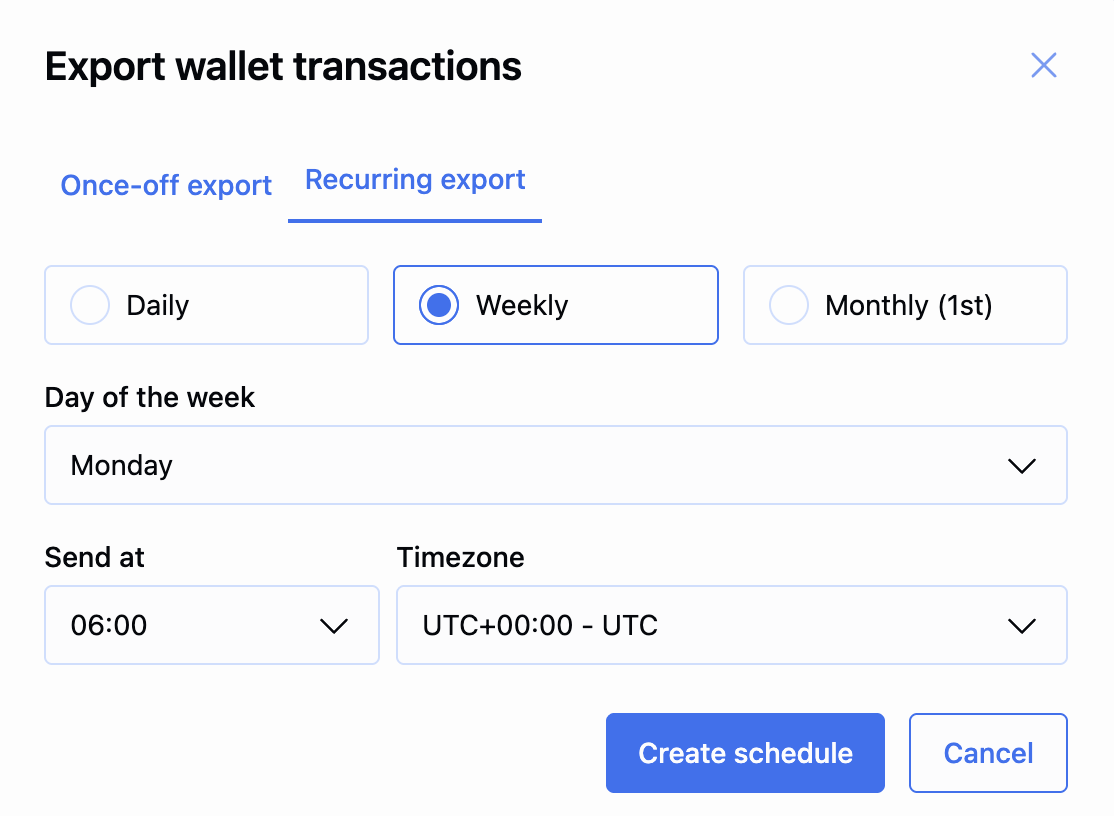
Manage scheduled reports
To change an existing schedule, do the following:
- API
- Portal
Use the PUT /ledger/v1/report-schedules/{scheduleId} endpoint to update the schedule parameters of a recurring report.
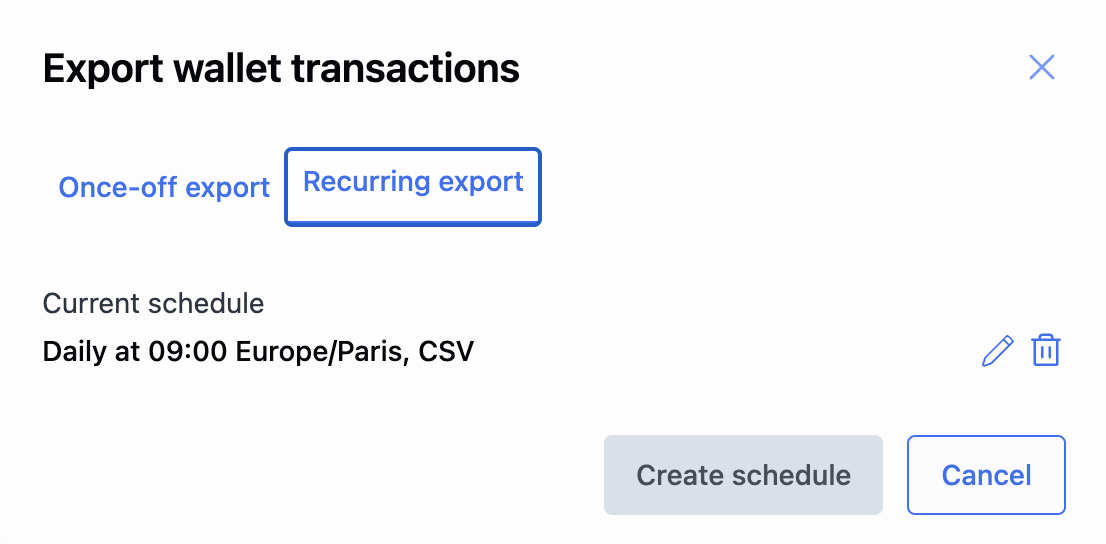
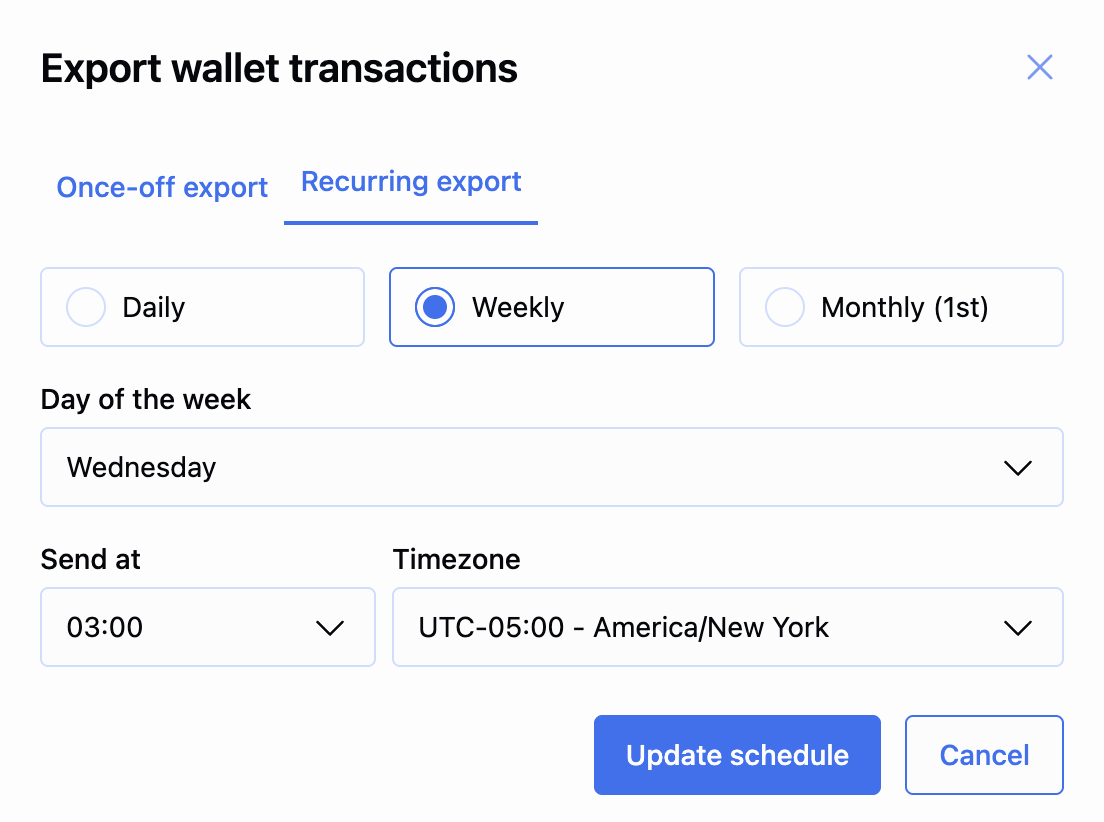
To delete a schedule, do the following:
- API
- Portal
Use the DELETE /ledger/v1/report-schedules/{scheduleId} endpoint to delete a recurring report for a specific wallet.
Report data
The downloadable reports are created in the CSV, PDF, or JSON format.
Use the report data to check that balances, amounts, and fees match between your system and BVNK.
You can import the data into accounting tools for further analysis or open it in any spreadsheet editor.
Report download links remain active for 24 hours after generation. After that, the report is no longer accessible. Download and save your reports promptly.
In the report, you can find the following data:
| Field | Description |
|---|---|
Account Name | Name of the BVNK account associated with the transaction. |
Account Reference | Unique reference identifier for the account. |
Date Created | Timestamp when the transaction was created. |
Currency | Currency code of the transaction. |
Transaction ID | Unique identifier for the transaction. |
Transaction Type | Type of transaction. Possible values: - PAYOUT- PAYIN- FEE- internalTransfer- paymentOut- channelDeposit- reversal |
Description | Human-readable description of the transaction. |
Amount | Transaction amount. |
Transaction Hash | Blockchain transaction hash for crypto transactions. |
Transaction UUID | Universally unique identifier for the transaction. |
Payment Type | Type of payment: incoming (IN) or outgoing (OUT). |
Payment Status | Current status of the payment. Possible values: - PENDING- COMPLETE- CANCELLED- EXPIRED- UNDERPAID |
Merchant Reference | Reference identifier provided by the merchant. |
From Currency Code | Source currency code for currency conversion transactions. |
To Currency Code | Destination currency code for currency conversion transactions. |
Merchant ID | Unique identifier for your BVNK account. In the Direct model, this matches the Account ID and identifies the account that uses BVNK services directly. |
Running Balance | Cumulative balance after the transaction. |
Transaction Context | Additional context or metadata for the transaction. |
Wallet Lsid | Wallet ledger identifier. |
Wallet Id | Unique identifier for the wallet. |
Wallet Description | Human-readable description of the wallet. |
Required Amount | Amount required for the transaction. |
Paid Actual Amount | Actual amount that was paid. |
Paid Amount Currency | Currency code of the paid amount. |
Transaction Amount | Total transaction amount. |
Display Currency | Currency code used for display purposes. |
Exchange Rate | Exchange rate applied for currency conversion. |
Display Actual Amount | Actual amount displayed in the display currency. |
Display Required Amount | Required amount displayed in the display currency. |
Counterparty Details | Information about the counterparty in the transaction. |
Contact Name | Name of the contact associated with the transaction. |
Customer Id | Unique identifier for the customer. In the Embedded model, this identifies your customers who use BVNK services via your account. |
Country Code | ISO country code associated with the transaction. |
Reconcile your records
After generating a report, compare it with your internal transaction records:
-
Match transactions: Use
Transaction ID,Transaction UUID, orMerchant Referenceto match BVNK transactions with your records. -
Verify amounts: Compare
Amount,Transaction Amount, andRunning Balancefields with your records. -
Check statuses: Verify that
Payment Statusmatches your system's status. Investigate anyPENDINGorUNDERPAIDtransactions. -
Reconcile fees: Compare fee amounts in your records with BVNK's fee calculations.
-
Handle discrepancies: If you find mismatches:
- Verify the date range of your report
- Check for transactions that may be in different statuses
- Contact BVNK support if discrepancies persist
See also
To learn how to receive reconciliation reports via webhook delivery instead of email, see Receive transactions report via webhook.