Configure approvals for withdrawals
Approval settings allow you to configure rules to govern outgoing transactions from your asset pools. By setting volume-based thresholds, you can require approvals for all withdrawals or those exceeding specific thresholds.
Why do you need approvals for withdrawals?
Requiring approvals for withdrawals adds a critical layer of control and oversight to your Layer1 treasury movements. This feature provides the following benefits:
- Risk Mitigation.
Approvals reduce the risk of accidental, unauthorised, or malicious transfers. By introducing a review step, you can prevent large or suspicious withdrawals from being executed without scrutiny. - Customizable Control.
Teams can configure thresholds and delegate approvers, allowing necessary stakeholders or leads to stay informed about high-impact transactions while enabling routine operations to continue smoothly. - Auditability and Transparency.
All approvals (or rejections) are logged and traceable. This strengthens accountability across teams and simplifies post-transaction reviews or compliance audits. - Peace of Mind for Stakeholders.
Ultimately, this feature gives teams confidence that funds are protected by policy and oversight, not just technical safeguards—ensuring trust at both operational and executive levels.
Restrict withdrawals to trusted addresses
To increase security surrounding fund withdrawals it is recommended to limit withdrawals to trusted addresses only. Trusted addresses are addresses linked to a contact you have created within your Layer1 instance. For more information on creating contacts, see Add a contact.
To restrict withdrawals to trusted addresses only, do the following:
- Go to Approvals > Settings.
- Select the tab Withdrawals and click Edit next to Allow withdrawals to.
- Select Trusted addresses only (recommended).
- Click Save.
Enable approvals for withdrawals
By default, no approvals are required for withdrawals from your Layer1 asset pools.
To enable approvals for withdrawals or to edit configurations, you must have the role approval-settings:operator.
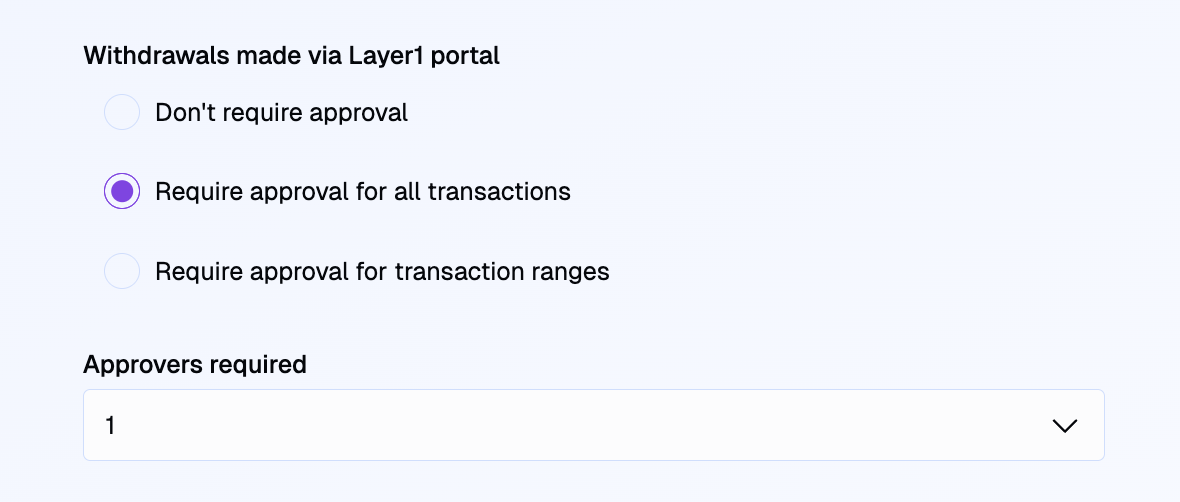
Configure approvals for all transactions
To require approvals for all transactions of any amount, do the following:
- Go to Approvals > Settings.
- Select the tab Withdrawals and click Edit next to the source you want to configure approvals for: Withdrawals made via Layer1 portal or Withdrawals made via API.
- Select Require approval for all transactions.
- Use the dropdown to select the number of approvers required to sanction withdrawals.
- Click Save.
Ensure you Assign approver permissions to relevant users to complete your approvals set-up.
Configure approvals for transaction ranges
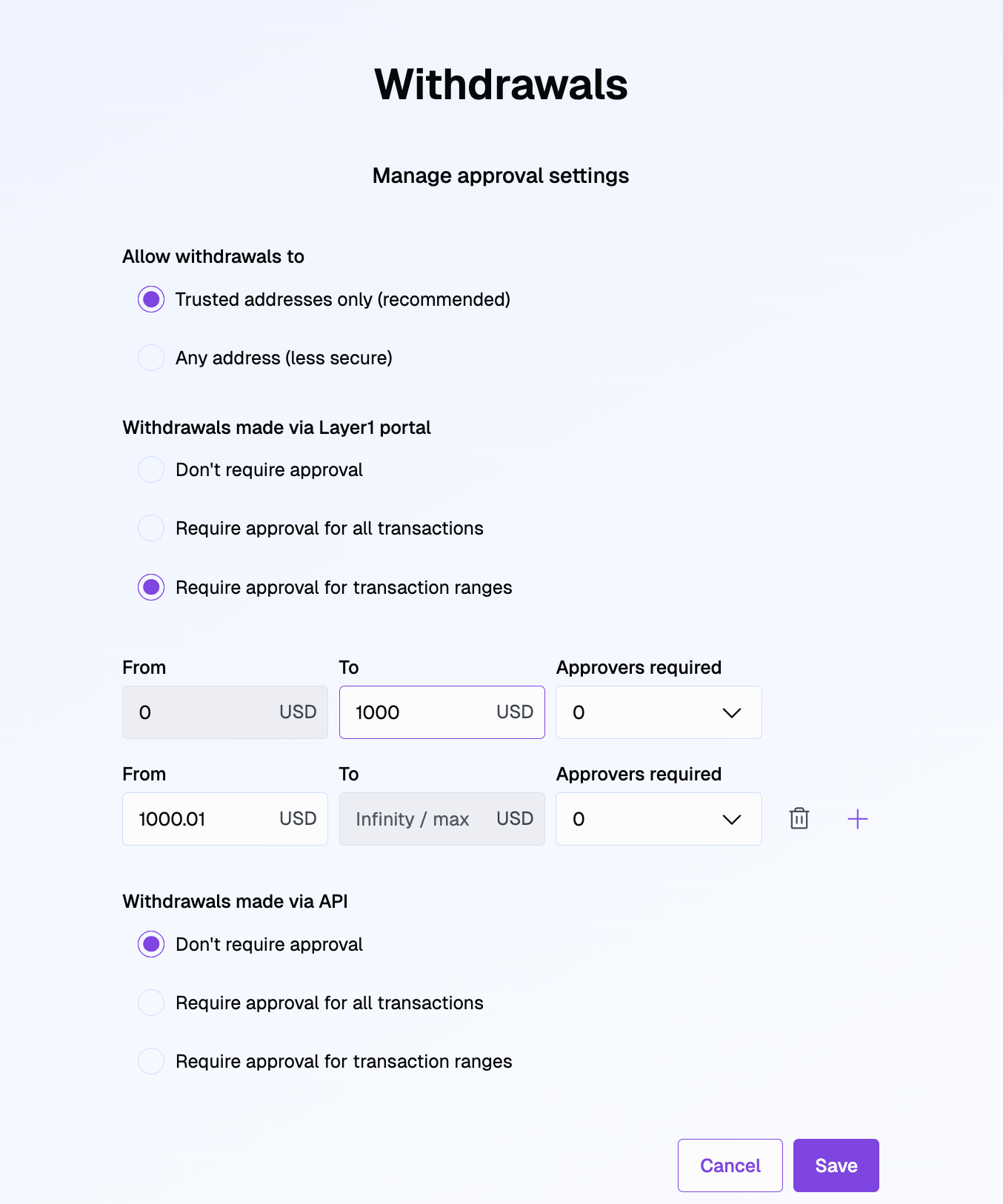
To require approvals for transaction ranges, do the following:
- Go to Approvals > Settings.
- Select the tab Withdrawals and click Edit next to the source you want to configure approvals for: Withdrawals made via Layer1 portal or Withdrawals made via API.
- Select Require approvals for transaction ranges.
- Set your first transaction range:
- In the to field, enter the upper limit of the range. Transaction ranges must be mutually exclusive and collectively exhaustive (MECE) to avoid security setting conflicts; that's why the first range must begin with a from value of 0.
- In the Require box, select the number of approvers required to sanction withdrawals.
- Set your next transaction range:
- Adjust the from and to fields. The form will automatically populate the from value based on the previous range to ensure the ranges are MECE.
- In the Require box, select the number of approvers required to sanction withdrawals.
- To add additional transaction ranges, click the plus icon and repeat steps 3.1-3.2. To remove a transaction range, click the trash icon next to the unnecessary section.
- Click Save.
Ensure you Assign approver permissions to relevant users to complete your approvals set-up.
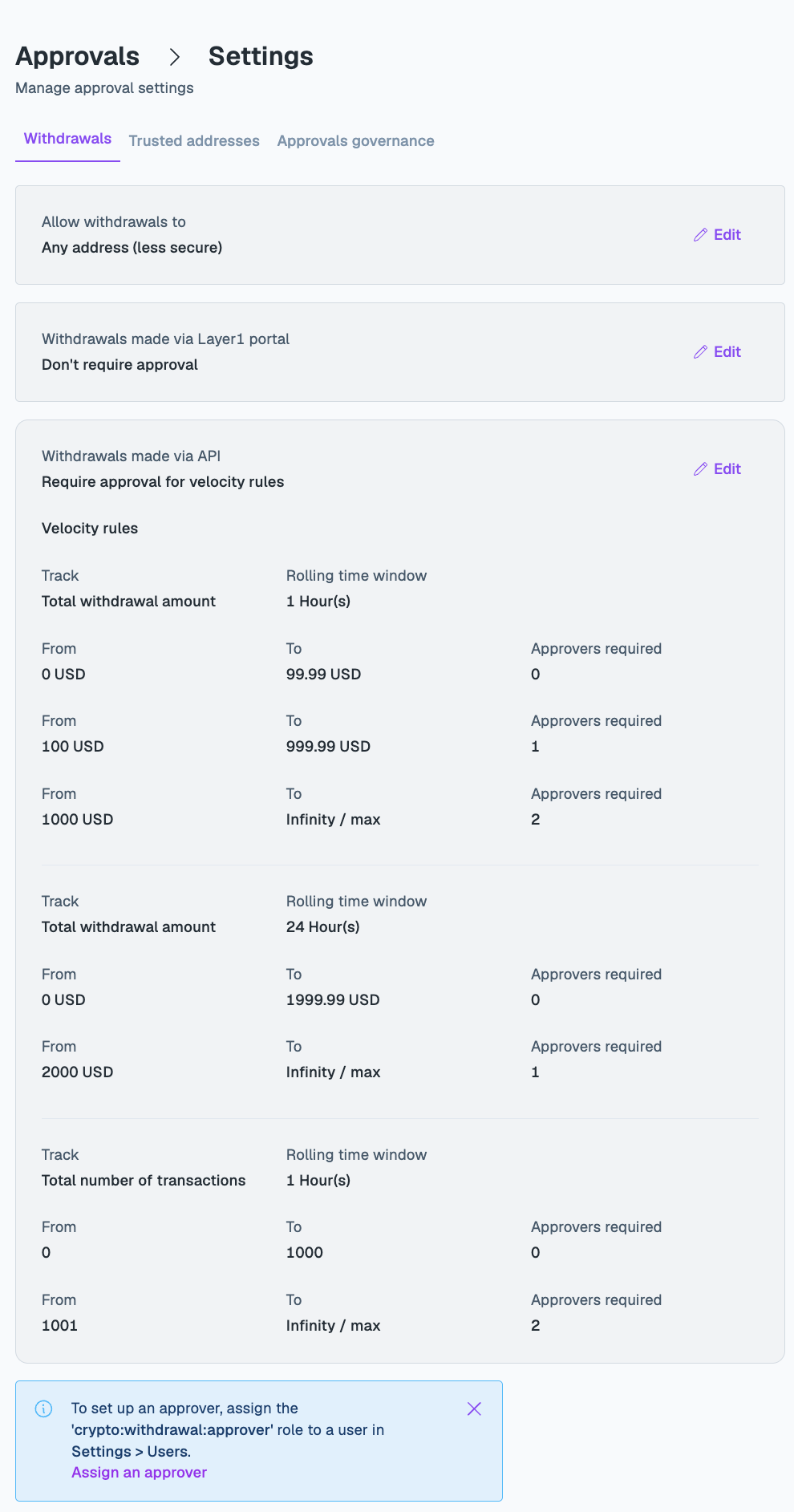
Configure approvals with velocity rules
Velocity rules require approvals based on withdrawal activity over a period of time, rather than on a single withdrawal. To use them, select Require approval for velocity rules for a source on the Withdrawals tab.
Each velocity rule tracks either the Total withdrawal amount or the Total number of transactions within a Rolling time window, for example 1 hour or 24 hours. Within each rule, you set ranges with a From and To value and the number of Approvers required for each range. You can add several rules for the same source; for example, one rule for the hourly withdrawal amount and another for the number of transactions per hour.
Ensure you Assign approver permissions to relevant users to complete your approvals set-up.
Update and remove approvals configuration
To update your configuration for withdrawals, do the following:
- Go to Approvals > Settings.
- Select the tab Withdrawals and click Edit next to the source you want to update approvals for: Withdrawals made via Layer1 portal or Withdrawals made via API.
- Change the approval configuration:
- Update: To update the approval configuration you have set, edit the number of approvers or transaction ranges required.
- Remove: To remove approvals for all withdrawals:
- Select Don't require approval.
- Click Save to store your updated settings.
Require approvals for changes to approval settings
By default, no approvals are required for changes made to approval settings. To enable approvals for changes to settings you must have the role approval-settings:operator.
To require approvals for changes to approval settings, do the following:
- Go to Approvals > Settings.
- Select the tab Approvals governance and click Edit.
- Select Require approvals when changes to approval settings are made
- Use the dropdown to select the number of approvals you require
- Click Save
Ensure you Assign approver permissions to relevant users to complete your approvals set-up.
Assign approver permissions
To update user permissions, you must have the user:operator role.
To approve withdrawals, you must have the crypto:withdrawal:approver permission.
To assign this approver permission to users, do the following:
-
Go to Manage account > Team members.
-
Find the user to whom you want to assign approver permissions, open the menu (⋮) next to their name, and click Edit.
-
In the Assign roles to user menu, click the expander arrow to find the
crypto:withdrawal:approverrole and assign it to the user.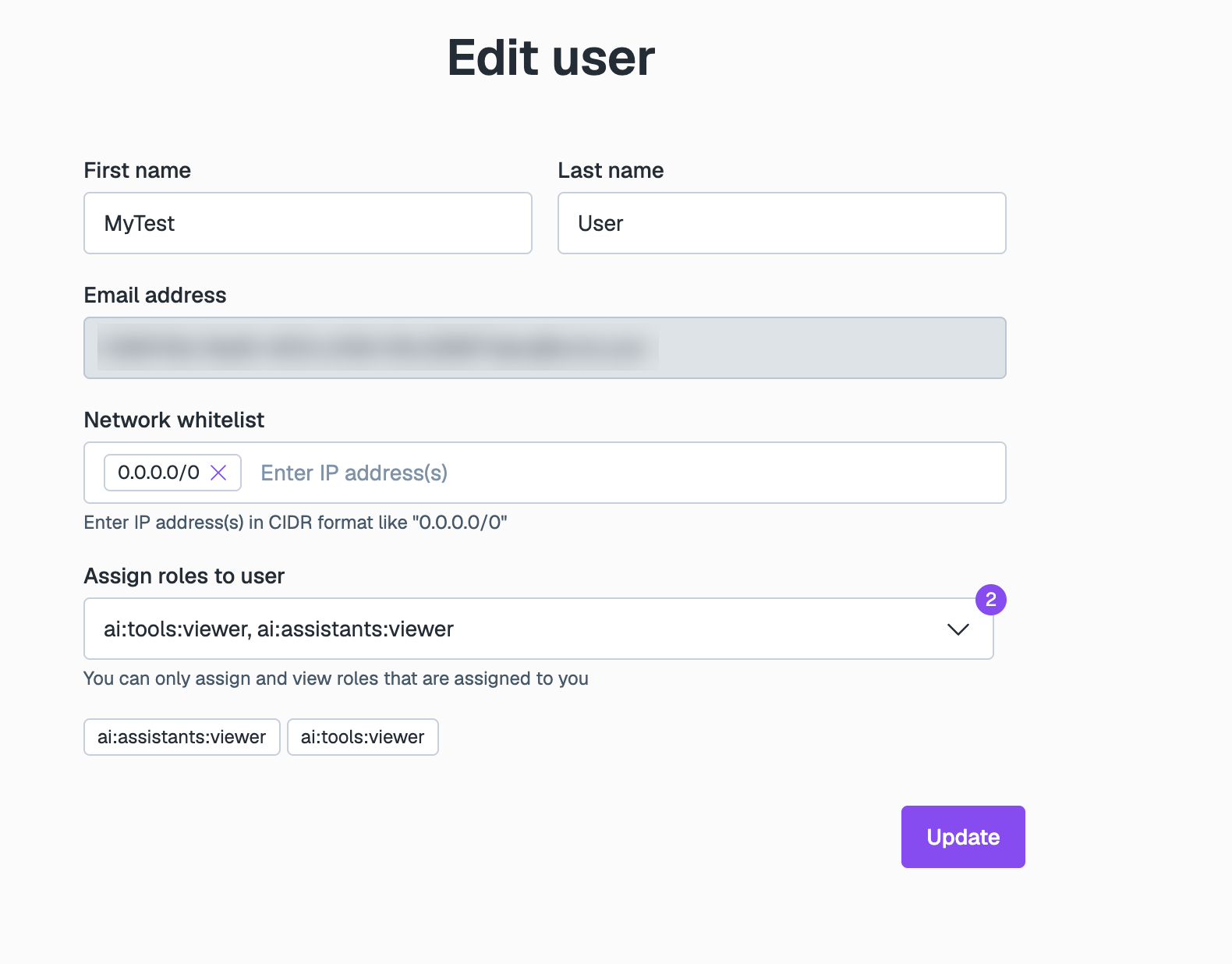
-
Click Update.